

Quick answer: The fastest way to duplicate a page in WordPress is to install a free plugin like Yoast Duplicate Post, which adds a “Clone” link under every page and post in your dashboard. For a no-plugin approach, open the page in the block editor, select all blocks with Ctrl+A, copy with Ctrl+C, create a new page, and paste. For Elementor pages, use Elementor’s built-in Save as Template feature.
WordPress doesn’t have a “Duplicate” button on posts or pages — and somehow, after twenty years, it still doesn’t. You’d think copying a page to reuse its layout, structure, or content would be a core feature, but it’s not. So you’re either doing it the slow way (copy-pasting blocks by hand), the plugin way (one click), or the code way (no plugin needed).
Here are all four methods, from fastest to most flexible, so you can pick the one that fits how you work.
Method 1: Duplicate with a Plugin (One Click)
The most popular method, and the one I’d recommend for anyone who duplicates pages regularly.
Yoast Duplicate Post (free)
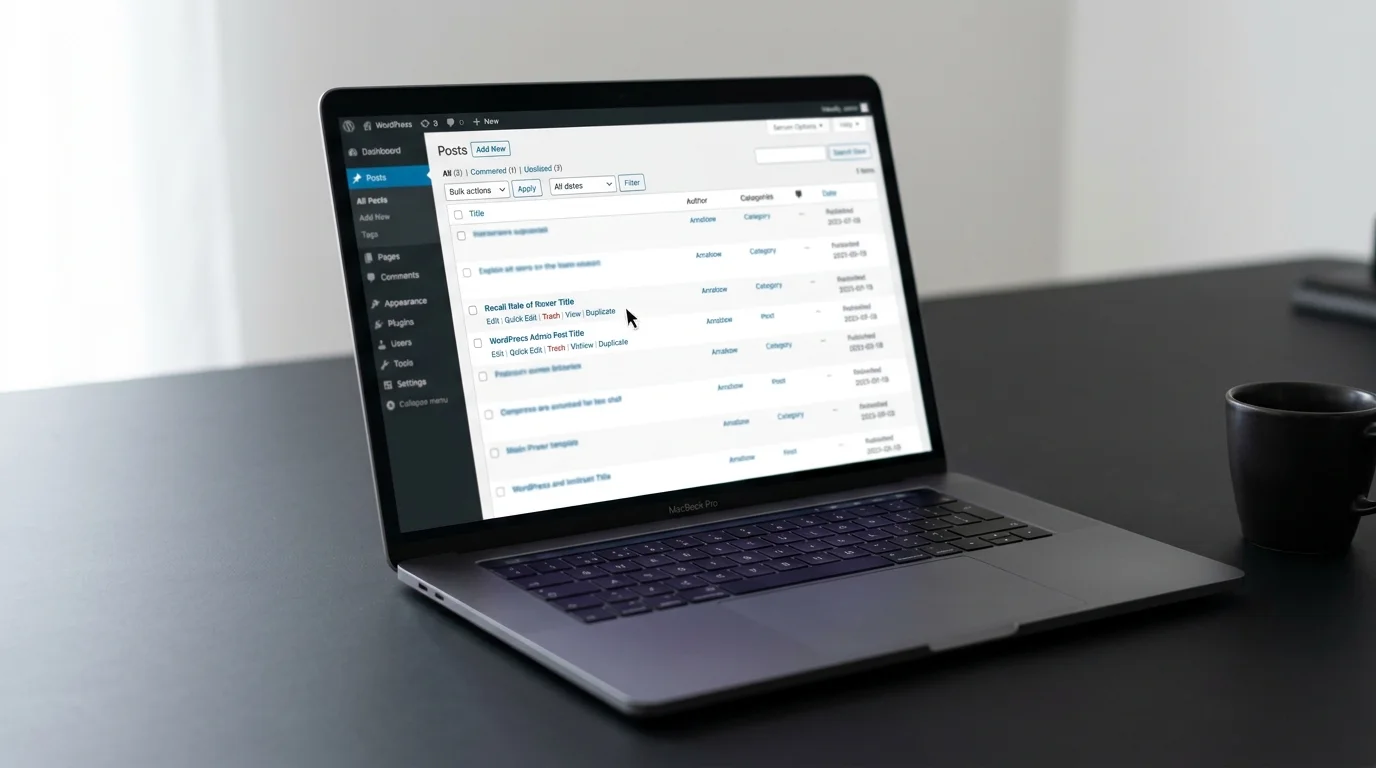
Install Yoast Duplicate Post from the plugin directory. Once activated, hover over any post or page in your dashboard list and you’ll see three new links: Clone (creates a draft copy), New Draft (creates a copy and opens it in the editor immediately), and Rewrite & Republish (creates a staged copy for editing a published post without touching the live version).
Clone is the one you want for simple duplication. One click, and a complete copy appears in your drafts — content, featured image, categories, tags, SEO meta, custom fields, all of it. The copy is always a draft, so nothing publishes accidentally.
Under Settings → Duplicate Post, you can control exactly what gets copied: whether to include the featured image, taxonomy terms, comments, and which post types the Clone link appears on. Worth spending one minute configuring after install.
Other options
Duplicate Page and Post Duplicator are lighter alternatives if you want fewer features and a smaller footprint. They all do the same core job; Yoast Duplicate Post is just the most established and the one I see on the most client sites.
Method 2: Copy All Blocks in the Editor (No Plugin)
If you’d rather not add a plugin for something this simple:
- Open the page you want to duplicate in the block editor.
- Press Ctrl+A (Cmd+A on Mac) to select all blocks, then Ctrl+C to copy.
- Go to Pages → Add New, click into the editor, and press Ctrl+V to paste.
- Set the title, slug, featured image, categories, and SEO meta manually — these don’t come along with the paste.
This copies all the content blocks perfectly — text, images, headings, lists, custom blocks, everything inside the editor. What it doesn’t copy: the featured image, categories, tags, Rank Math SEO fields, custom fields, or any page settings outside the editor. For a one-off duplication where you’re changing most of the meta anyway, this is perfectly fine. For regular use, the plugin saves the manual steps.
Method 3: Duplicate an Elementor Page
Elementor has its own duplication workflow that’s independent of the methods above:
Save as Template
- Open the page in Elementor.
- Click the arrow next to the Publish/Update button and choose Save as Template.
- Name it and save.
- Create a new page, open it in Elementor, click the folder icon (My Templates), find your saved template, and click Insert.
This copies the entire Elementor layout — sections, widgets, styling, everything. The template stays in your library for reuse across as many pages as you want, which makes it the right method when you’re building multiple pages from the same layout (service pages, landing pages, product pages with a shared structure).
Right-click → Duplicate (within a page)
Inside the Elementor editor, right-clicking any section or container and choosing Duplicate copies it within the same page. Useful for repeating sections (testimonial rows, feature blocks) but not for duplicating an entire page to a new one. For that, use Save as Template above.
Method 4: Duplicate with Code (functions.php)
If you want a Duplicate link in your dashboard without installing a plugin, add this to your child theme’s functions.php:
function sd_duplicate_post_link( $actions, $post ) {
    if ( current_user_can( 'edit_posts' ) ) {
        $actions['duplicate'] = '<a href="' . wp_nonce_url(
            admin_url( 'admin-post.php?action=sd_duplicate_post&post=' . $post->ID ),
            'sd_duplicate_' . $post->ID
        ) . '">Duplicate</a>';
    }
    return $actions;
}
add_filter( 'post_row_actions', 'sd_duplicate_post_link', 10, 2 );
add_filter( 'page_row_actions', 'sd_duplicate_post_link', 10, 2 );

function sd_duplicate_post() {
    if ( ! isset( $_GET['post'] ) || ! wp_verify_nonce( $_GET['_wpnonce'], 'sd_duplicate_' . $_GET['post'] ) ) {
        wp_die( 'Security check failed.' );
    }
    $original = get_post( absint( $_GET['post'] ) );
    if ( ! $original ) wp_die( 'Post not found.' );
    $new_post = array(
        'post_title'   => $original->post_title . ' (Copy)',
        'post_content' => $original->post_content,
        'post_status'  => 'draft',
        'post_type'    => $original->post_type,
        'post_author'  => get_current_user_id(),
    );
    $new_id = wp_insert_post( $new_post );
    $taxonomies = get_object_taxonomies( $original->post_type );
    foreach ( $taxonomies as $taxonomy ) {
        $terms = wp_get_object_terms( $original->ID, $taxonomy, array( 'fields' => 'slugs' ) );
        wp_set_object_terms( $new_id, $terms, $taxonomy );
    }
    wp_redirect( admin_url( 'edit.php?post_type=' . $original->post_type ) );
    exit;
}
add_action( 'admin_post_sd_duplicate_post', 'sd_duplicate_post' );
This adds a “Duplicate” link under every post and page in your dashboard that creates a draft copy with the title, content, and taxonomy terms. It doesn’t copy custom fields, featured images, or SEO meta — for that level of completeness, the Yoast Duplicate Post plugin is the more practical choice. But if your philosophy is “no plugin for simple things,” this snippet does the job.
Which Method Should You Use?
- Duplicate pages regularly → Yoast Duplicate Post plugin (Method 1). One click, everything copied.
- One-off duplication, no plugin → Copy all blocks (Method 2). Fast, no install, manually set the meta.
- Elementor page → Save as Template (Method 3). The right tool for the right builder.
- No-plugin philosophy → functions.php snippet (Method 4). Lightweight, developer-friendly.
Don’t Forget After Duplicating
- Change the title and slug. A duplicate page with the same title creates confusion in your dashboard and a “-2” slug that looks sloppy in URLs.
- Update the SEO title and meta description. If the plugin copied them, they now describe the original page, not the new one. Two pages with identical SEO titles compete with each other in search.
- Check the keyword targeting. Each page should target its own primary keyword. A duplicate that still targets the original’s keyword is a cannibalization problem waiting to happen.
- Replace placeholder content. A published page that still says “Copy of About Us” or contains the original page’s content is a duplicate-content issue.
Frequently Asked Questions
Can I duplicate a page in WordPress without a plugin?
Yes. Open the page in the block editor, press Ctrl+A then Ctrl+C to copy all blocks, create a new page, and paste. This copies the content but not the featured image, categories, tags, or SEO meta — set those manually on the new page.
What is the best plugin to duplicate a page in WordPress?
Yoast Duplicate Post is the most established and widely used. It adds a Clone link under every post and page that creates a complete draft copy — content, featured image, categories, tags, SEO meta, and custom fields — in one click.
How do I duplicate an Elementor page?
In the Elementor editor, click the arrow next to the Publish button and choose Save as Template. Name it and save. Then create a new page, open it in Elementor, click the folder icon for My Templates, and insert the saved template. This copies the full Elementor layout.
Does duplicating a page hurt SEO?
Only if you publish the copy without changing its content, title, and SEO meta. Two pages with identical content compete with each other in search. Always update the duplicate’s title, slug, SEO title, meta description, and target keyword before publishing.
Can I duplicate a post the same way as a page?
Yes — every method in this guide works for both posts and pages. The Yoast Duplicate Post plugin shows Clone links on both by default, the block-copy method works identically, and the functions.php snippet handles both post types.
Wrapping Up
Four methods, one goal: don’t rebuild what you’ve already built. Use the plugin for regular duplication, the block-copy for quick one-offs, Save as Template for Elementor layouts, and the code snippet if you’d rather keep things lean. Whichever path you take, change the title, slug, and SEO meta on the copy before publishing — that’s the step that separates a useful duplicate from a duplicate-content problem.
And if your WordPress site needs more than copy-paste — custom builds, speed optimization, or untangling a mess of duplicated content that’s already hurting your rankings — that’s the work I do. Get in touch and I’ll take a look.
Shahbaz Ali is a senior WordPress developer with 6+ years of agency experience, specializing in WordPress development, speed optimization, and emergency fixes.