

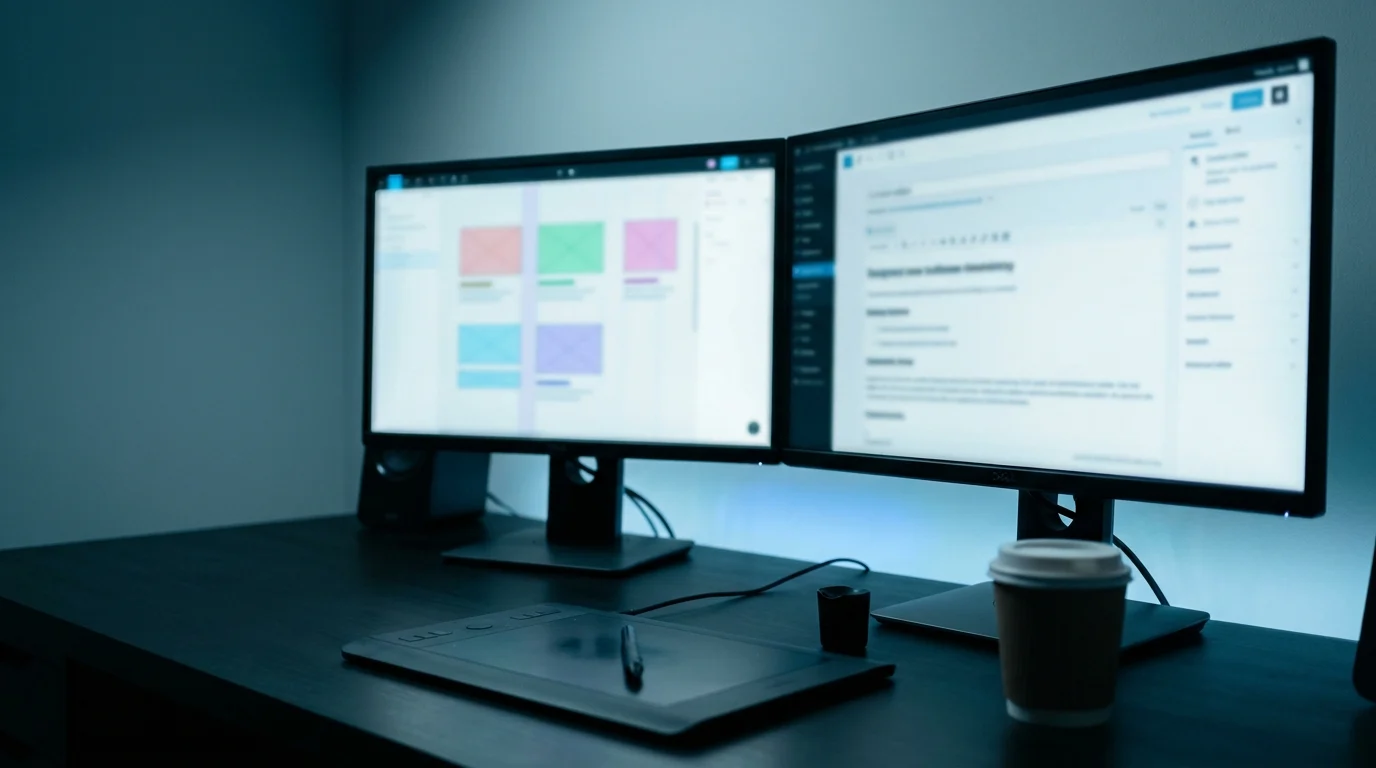
You have a finished Figma design. The client signed off, the spacing is precise, and the handoff file is clean. Now it needs to become a WordPress site — and this is where most projects quietly go sideways, because the gap between a static design and a live, editable WordPress site is bigger than it looks in the demo.
I do this conversion weekly — mostly through Elementor, sometimes with custom themes, occasionally evaluating converter plugins for clients who ask. This guide covers all three real methods, honestly, so you can pick the one that fits your project rather than the one someone is selling you.
Quick answer: There’s no one-click Figma-to-WordPress export. The three real paths are: rebuilding the design in a page builder like Elementor (fastest for most sites), coding a custom WordPress theme (highest fidelity, highest cost), or using a converter plugin like UiChemy or Figmentor (fastest start, most cleanup). The right choice depends on the site’s complexity, your budget, and who will maintain it after launch.
Why There’s No Export Button
Figma and WordPress speak completely different languages. Figma thinks in frames, auto-layout, components, and design tokens. WordPress thinks in templates, blocks, PHP, and a database. There’s no shared format between them — a Figma file can’t become a WordPress theme the way a Sketch file can’t become a mobile app. Every conversion is a rebuild, not a transfer, and the method you choose determines the rebuild’s speed, accuracy, and maintainability.
Before You Start: Prepare the Figma File
Understanding that upfront saves the project: you stop looking for a magic export and start making an informed choice between the three real workflows below.
Whichever method you choose, a messy Figma file makes the conversion slower and the result worse. Spend thirty minutes on this checklist before touching WordPress:
- Name everything. Every frame, section, and component should have a descriptive name — “Hero Section,” not “Frame 47.” Whoever builds the WordPress version (you, a developer, or a tool) will reference these names constantly.
- Use consistent design tokens. Colors, typography, and spacing should come from Figma’s styles or variables, not hardcoded values. This maps directly to WordPress theme settings — one source of truth for fonts and colors instead of fifty hand-typed hex codes.
- Design all the boring pages. The homepage is never the problem. The 404, the blog post template, the legal pages, mobile breakpoints, form states — if they’re not in Figma, they’ll be invented during the build, and invented pages never match the designed ones.
- Export assets properly. Icons as SVG, photos at 2x resolution, logos in both SVG and PNG. A developer shouldn’t have to re-export anything from a file they may not have access to after handoff.
- Note what moves. Hover states, animations, scroll behaviors, form interactions — mark them in the design or a separate spec. Static screenshots don’t show motion, and assumptions about interaction lead to revision cycles.
Method 1: Rebuild in a Page Builder (Elementor, Bricks, or Gutenberg)
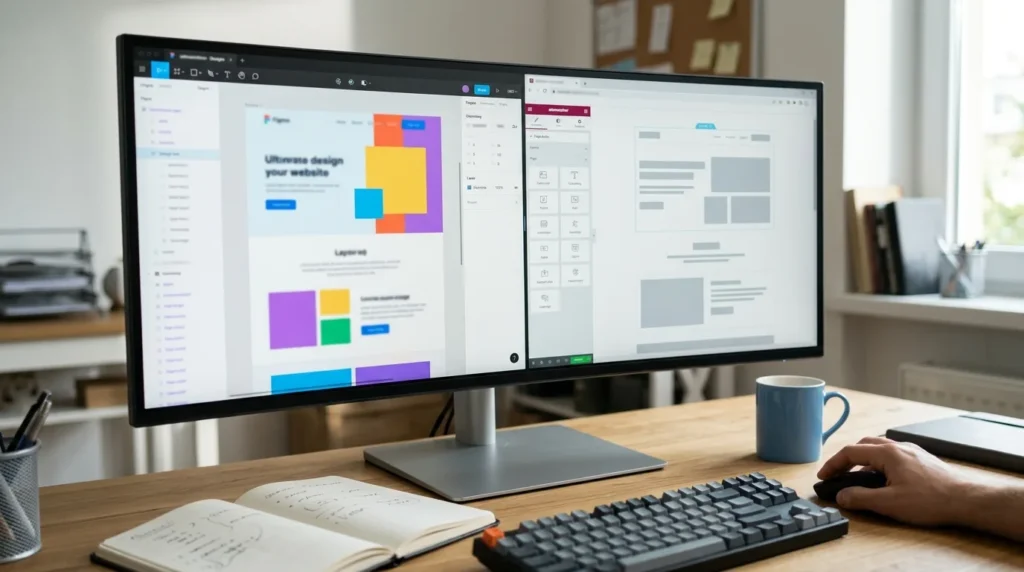
This is how I convert most Figma designs, and it’s the method I’d recommend for the majority of business and marketing sites. You open the Figma design on one screen, WordPress on the other, and rebuild section by section in a visual builder.
Why Elementor is my default for this
Elementor Pro’s visual model maps closest to how designers think in Figma: containers (like Figma frames), flexbox-based layouts, global styles for colors and typography, and a responsive editor with breakpoint controls. The workflow is literally: look at the Figma section, build the equivalent in Elementor, match spacing and type, move to the next section. A five-page marketing site typically takes two to four days.
The trade-off is real, though: Elementor adds its own markup and CSS layer, which means slightly heavier pages than a hand-coded theme. For most business sites the performance difference is negligible after proper optimization (I cover that in my speed optimization guide). For sites where every millisecond of load time matters, consider Method 2.
The step-by-step workflow
- Set up global styles first. In Elementor’s Site Settings, define your colors, fonts, and default typography to match Figma’s design tokens. This is worth getting exactly right: every widget inherits these, so one correct setting prevents a hundred manual overrides.
- Build the header and footer as global templates. These appear on every page, so build them once in Elementor’s Theme Builder with display conditions. Match the Figma nav precisely — logo placement, menu structure, mobile hamburger behavior, CTA button.
- Rebuild pages section by section. Work top-to-bottom through the Figma design. Each Figma section becomes an Elementor section or container. Match padding, margin, and gap values from Figma’s inspect panel. Use Elementor’s Flexbox Container for layouts that mirror Figma’s auto-layout.
- Handle responsive breakpoints. Figma shows you desktop, tablet, and mobile layouts; Elementor lets you adjust each breakpoint separately. Check every section at every breakpoint — the one you skip is the one the client notices.
- Connect dynamic content. Blog posts, team members, testimonials, portfolio items — anything that repeats or changes should come from WordPress’s CMS (custom post types + ACF or native custom fields), not be hardcoded in the page builder. This is what makes the site actually maintainable after you hand it over.
- Test, optimize, and hand off. Check forms work, links resolve, images are compressed, and page speed is healthy. My cache guide covers the final caching setup.
When to use this method
Marketing sites, portfolios, small business sites, landing pages — anything where the client needs to edit content after launch and the design doesn’t require exotic interactions that only custom code can deliver. This is the sweet spot for 80% of Figma-to-WordPress projects.
Method 2: Code a Custom WordPress Theme
The highest-fidelity path: a developer translates the Figma design into a fully custom WordPress theme with hand-written HTML, CSS, PHP, and JavaScript. No page builder, no abstraction layer — the output is exactly what the design specifies, pixel for pixel.
What this looks like in practice
The developer maps Figma’s design tokens to WordPress’s theme.json (or a custom CSS system), builds page templates that mirror each Figma page, creates ACF field groups for every piece of editable content, and wires everything through clean, semantic markup. The result loads faster, weighs less, and is entirely under the developer’s control.
The cost is time and money: a custom theme for a ten-page site typically takes one to three weeks and costs significantly more than a page-builder rebuild. And maintenance requires a developer — the client can edit content through ACF fields, but structural changes need someone who can write PHP.
When to use this method
Performance-critical sites (every kilobyte matters), complex web applications with custom functionality beyond what page builders handle, sites with unique interaction patterns that need custom JavaScript, or projects where the budget supports the higher build cost and ongoing developer access. Also the right choice when the design system is complex enough that page-builder conventions would fight it rather than implement it.
Method 3: Use a Converter Plugin or Tool
Several tools promise to automate part of the conversion: UiChemy converts Figma designs to Elementor or Gutenberg layouts, Figmentor exports Figma frames to Elementor templates, and Yotako’s Figma to WordPress plugin generates a basic WordPress theme from your file. Newer AI-assisted workflows (like Claude Code with InstaWP) add another path.
The honest assessment: these tools have improved dramatically and can save real time on the structural conversion — getting boxes, text, and images roughly in place. Where they consistently fall short is the refinement: responsive behavior, interactive states, proper CMS wiring, accessibility, and matching the design’s intent rather than its pixel positions. Every converter project I’ve evaluated still needs significant manual cleanup, especially for anything beyond a straightforward landing page.
When to use this method
Simple landing pages or one-pagers where speed trumps perfection, prototyping (getting a rough WordPress version fast to test content or flows), or as a starting scaffold that a developer then refines manually. Not for client-facing sites where the design needs to be precise — the cleanup time often equals the time a page-builder rebuild would have taken, without the structural control.
Which Method Should You Choose?
One decision tree handles most cases:
- Standard marketing/business site, client edits content after launch → Method 1 (page builder, usually Elementor)
- Performance-critical, complex functionality, or bespoke design system → Method 2 (custom theme)
- Quick prototype or simple one-pager → Method 3 (converter tool + manual refinement)
- Not sure → Start with Method 1. It’s the most forgiving starting point, and if the project outgrows it, the content and structure migrate to a custom theme more easily than you’d think.
Common Mistakes That Kill Figma-to-WordPress Projects
- Starting the build before the Figma file is finished. A “mostly done” design means rebuilding sections you already built when the final version arrives. Wait for sign-off.
- Hardcoding content instead of using the CMS. If “About Us” is typed directly into an Elementor text widget instead of pulled from an ACF field, the client can’t update it without opening the builder. Every piece of changeable content should come from a field.
- Ignoring mobile until the end. Check responsive at every section, not in a final “mobile pass.” By the time you find a section that doesn’t work on mobile, you’ve built six more sections on top of a broken foundation.
- Choosing a converter tool for a complex site because it’s faster. The time saved on the initial conversion gets spent twice on cleanup. Match the method to the complexity.
Frequently Asked Questions
Is there a Figma to WordPress plugin?
Several exist. UiChemy converts Figma designs to Elementor or Gutenberg layouts, Figmentor exports frames to Elementor templates, and Yotako generates a basic theme. They save time on the structural scaffold but all require manual refinement for responsive behavior, interactions, CMS wiring, and design precision. None deliver a finished, production-ready site from a one-click export.
How long does a Figma to WordPress conversion take?
With Elementor: two to four days for a typical five-page marketing site, assuming the Figma file is clean and complete. A custom theme for the same site runs one to three weeks. Converter tools can produce a rough first version in hours, but the cleanup adds days. The Figma file’s preparation quality is the single biggest variable in timeline.
Can I convert Figma to WordPress with Elementor?
Yes, and it’s the most common professional workflow. Elementor Pro’s visual builder maps well to Figma’s design model: containers mirror frames, flexbox matches auto-layout, and global styles match design tokens. The process is a manual rebuild, section by section, using the Figma design as a reference — not an automated conversion.
How much does a Figma to WordPress conversion cost?
Ranges widely: a freelancer using Elementor for a five-page site might charge $500 to $2,000. An agency doing a custom theme build for a complex site could charge $5,000 to $15,000 or more. DIY with a page builder costs only your time plus the builder license. The biggest cost driver is complexity and the method you choose, not the platform.
Should I use Figma or design directly in WordPress?
Figma for anything more than a simple page. Designing in a page builder means making design decisions inside a tool optimized for building, not designing — the constraints are different, the exploration is slower, and the result is usually more generic. Design in Figma where you have full creative freedom, then build in WordPress where you have full CMS functionality.
Wrapping Up
Every Figma-to-WordPress project is a rebuild, not an export — and that’s fine, because the rebuild is where the design becomes a real site with a real CMS behind it. Prepare the Figma file properly, choose the method that matches your project’s complexity and budget, and check responsive at every step rather than the end.
And if you’d rather hand the whole conversion to someone who does this every week — Figma to Elementor, Figma to custom theme, or Figma to a WordPress site that’s fast, editable, and built right — that’s exactly the work I take on. Get in touch and show me the design.
Shahbaz Ali is a senior WordPress developer with 6+ years of agency experience, specializing in WordPress development, speed optimization, and emergency fixes.