


You click your own link and count the seconds. The hero image blinks in late, the fonts swap mid-read, and somewhere between three and eight seconds your visitor — who counts faster than you do — has already hit the back button. A slow site doesn’t feel broken, which is exactly why it costs you more than any error ever will.
Most speed guides respond to this with forty tips in random order. After six-plus years of speed optimization work, I can tell you the professionals do the opposite: diagnose first. Every slow WordPress site is slow in one of three places — the server, the assets, or the code — and a five-minute test tells you which one is yours. Fix the right bucket and the site transforms; fix the wrong one and you’ve spent a weekend for half a second.
Quick answer: A WordPress site loading slowly almost always comes down to one of three buckets: slow server response (hosting and missing page cache), heavy assets (images, fonts, scripts), or bloated code (theme, page builder, plugins). Run PageSpeed Insights, read your TTFB and LCP numbers to identify the bucket, then work the matching fixes below — proper caching plus image optimization alone resolves the majority of slow sites.
First, Find Out Where It’s Slow (the 5-Minute Diagnosis)
This guide is part of my complete guide to fixing common WordPress errors — the hub that maps every common error to its fix.
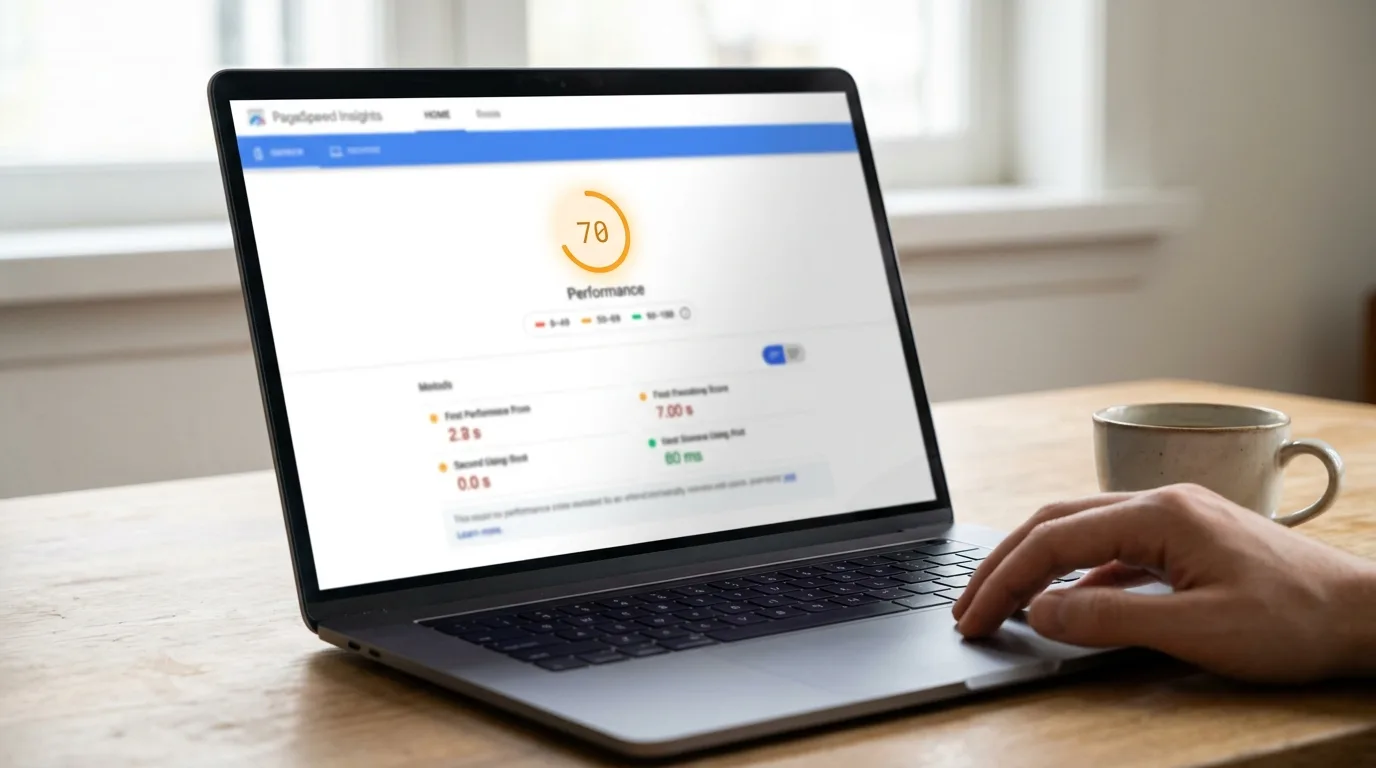
Open PageSpeed Insights and test two URLs: your homepage and one real inner page — a blog post or product page. Read the Mobile tab; that’s where Google judges you and where most of your traffic lives. (Cross-check total page weight in GTmetrix if you want a second opinion.) Most WordPress slow loading complaints sort themselves into three buckets from just two numbers:
- Server response (TTFB) above ~800 ms — flagged as “reduce initial server response time.” That’s the server bucket: nothing is cached, or the hosting is slow. Start with Fixes 1, 9, and 10.
- TTFB fine, but LCP over 2.5 seconds: the assets bucket. Images, fonts, and render-blocking files are the drag — Fixes 2 through 5.
- Neither number terrible, but the site still feels heavy: the code bucket — too much JavaScript, too many plugins loading everywhere, a bloated builder. Fixes 6 through 8.
Two testing rules. Always test logged out — caching serves visitors, not you. And don’t confuse this with a sluggish dashboard: wp-admin is never cached, so if it’s the backend that crawls rather than the site, that’s a separate checklist in my guide to fixing a slow WordPress admin.
Before You Touch Anything
- Save your baseline. Screenshot the PageSpeed report for both URLs. Every fix below should move a number — if it doesn’t, undo it and move on.
- Back up, and change one thing at a time. Speed tuning breaks more sites than errors do — when five optimizations go live at once, the one that blanked the page is unfindable.
Fix 1: Turn On Full-Page Caching (Properly)
The single biggest lever on this list. Without a page cache, WordPress rebuilds every page from scratch — PHP runs, the database answers dozens of queries, the theme renders — for every single visitor. A page cache does that work once and serves the saved HTML to everyone after, which routinely collapses server response from over a second to double-digit milliseconds.
On a LiteSpeed server, enable it under LiteSpeed Cache → Cache — that’s server-level caching, the fastest kind there is. On other hosting, any reputable caching plugin works (see my best WordPress caching plugins comparison): enable page caching first and leave the fancier switches alone for now.
Then verify it’s actually working — “installed” and “caching” are different things. Run this twice from any terminal:
curl -I https://yoursite.com/On the second response, look for x-litespeed-cache: hit (or your plugin’s equivalent header). The number of sites I audit with a caching plugin active and a stone-cold cache on every page is genuinely funny — until it’s your TTFB.
And when you need to empty any of these layers on purpose — plugin, host, CDN, or browser, in the right order — I’ve written the full walkthrough in my guide to clearing the WordPress cache properly.
Fix 2: Optimize Your Images (the Heaviest Win)
Images are usually more than half of a page’s weight, so this is where the assets bucket empties fastest. Three rules cover it:
- Right dimensions: don’t ship a 2560-pixel photo into a 400-pixel slot. Resize before upload or let WordPress serve the scaled size.
- Modern format: WebP (or AVIF) instead of JPEG and PNG — same visual quality at a fraction of the bytes.
- Real compression: hero images under ~150 KB, inline images under ~100 KB. If a photo weighs a megabyte, it’s not optimized, whatever the format.
LiteSpeed Cache → Image Optimization converts your whole library in the background. Keep lazy-loading on for below-the-fold images — but exclude the hero image from it. Lazy-loading your own LCP image is the classic self-inflicted wound: the one image Google times is the one you told the browser not to hurry with.

Fix 3: Defer and Slim Your CSS & JavaScript
Every stylesheet and script in your page’s head is a roadblock: the browser stops rendering until it’s fetched and parsed. The fix lives in LiteSpeed Cache → Page Optimization: minify CSS and JS, defer JavaScript, and generate critical CSS so the top of the page paints instantly while the rest loads behind it.
The discipline matters more than the switches: flip one toggle, purge the cache, test in an incognito window, repeat. Combining and deferring are where speed plugins earn their scary reputation — applied one at a time with a test after each, they’re safe and worth real seconds.
Fix 4: Host Fonts Locally (and Load Fewer of Them)
Every Google Fonts family is an extra round trip to another server before your text settles. Localize fonts so they’re served from your own domain (LiteSpeed Cache has a one-click “localize” for this, and many themes now offer it), make sure font-display: swap is in effect so text renders immediately, and be honest about the count — two families is a design system, five is a slideshow. In Elementor, also load only the icon libraries you actually use instead of every bundled set.
Fix 5: Put a CDN in Front of It
A CDN serves your images, CSS, and JS from a location near each visitor instead of making everyone travel to your server. On the LiteSpeed stack, QUIC.cloud pairs natively and can even cache full HTML at the edge; otherwise Cloudflare’s free tier is the standard choice. Just know what a CDN doesn’t fix: if your origin’s uncached response is slow, a basic CDN faithfully delivers that slowness worldwide — it’s a multiplier for Fixes 1 and 2, not a substitute.
Fix 6: Cut the Plugins That Load on Every Page
A plugin costs your visitors nothing unless it loads assets or runs queries on the front end — and the heavy ones do both, on every page, whether they’re used there or not. PageSpeed’s “Reduce unused JavaScript” panel literally lists the file paths; the plugin folder names in those URLs are pointing fingers. The usual front-end suspects: sliders, chat widgets, multiple analytics trackers, and addon packs installed for a single widget.
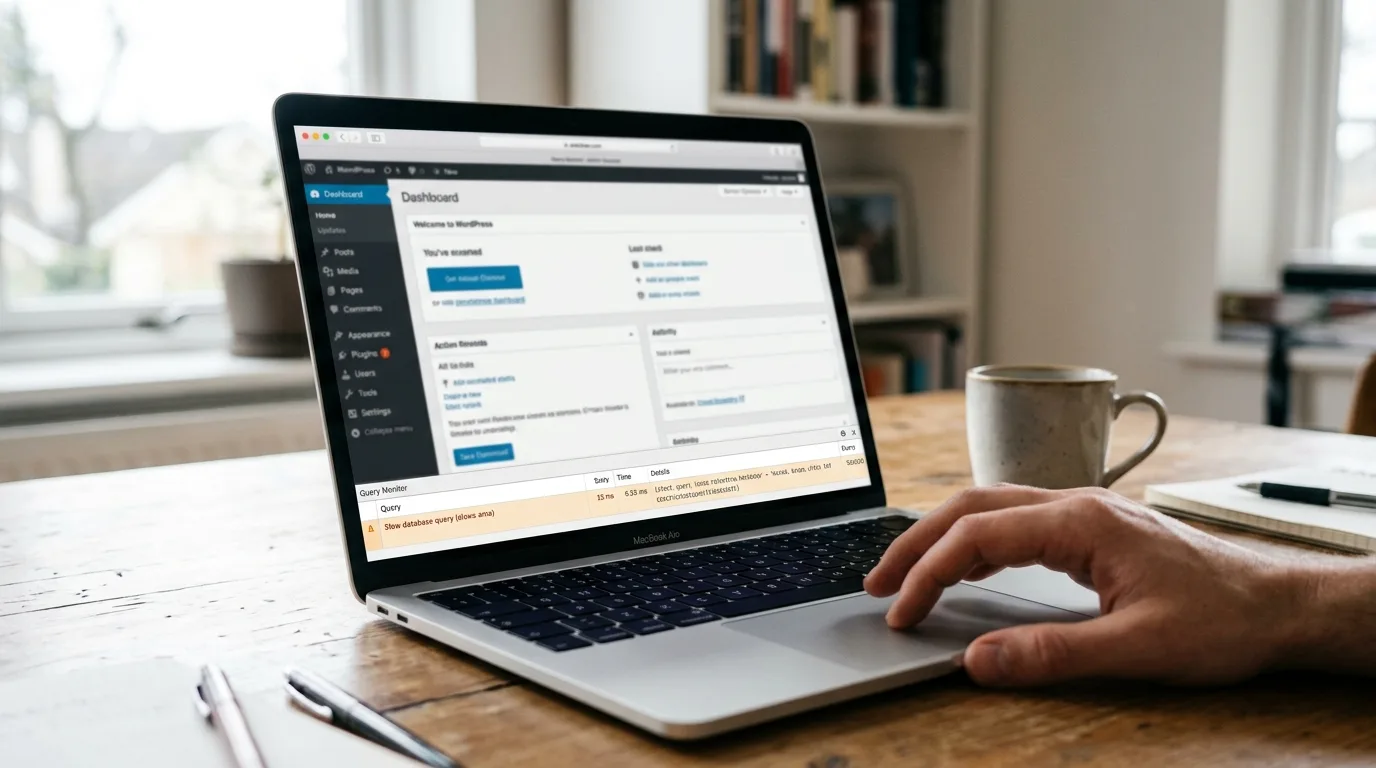
Replace what you can with lighter alternatives, remove what you don’t truly use, and run Query Monitor if you want database time per plugin as well — one lean tool beats three overlapping ones every time.
Fix 7: Clean Up the Database
Hundreds of revisions, expired transients, and autoloaded junk from long-deleted plugins add drag to every uncached page load — the first visit, the cart, the search results. LiteSpeed Cache → Database clears the sediment in one pass and shows your autoloaded-data total while it’s there; under 1 MB is healthy. Back up first, as with all database surgery.
Fix 8: Tame Your Page Builder
Honest talk from someone who builds with Elementor daily: builders add markup and assets, and pretending otherwise helps nobody. But a builder site can absolutely be fast — turn on Elementor’s performance features (Settings → Features), keep layouts shallow instead of nesting containers six levels deep, and resist installing three addon packs to get one fancy heading.
And update the builder and its addons with discipline — an incompatible addon update is one of the most common causes of the “critical error” screen I get called about. If that ever happens mid-optimization, my guide to fixing the WordPress critical error gets you back in.
Fix 9: Update Your PHP Version
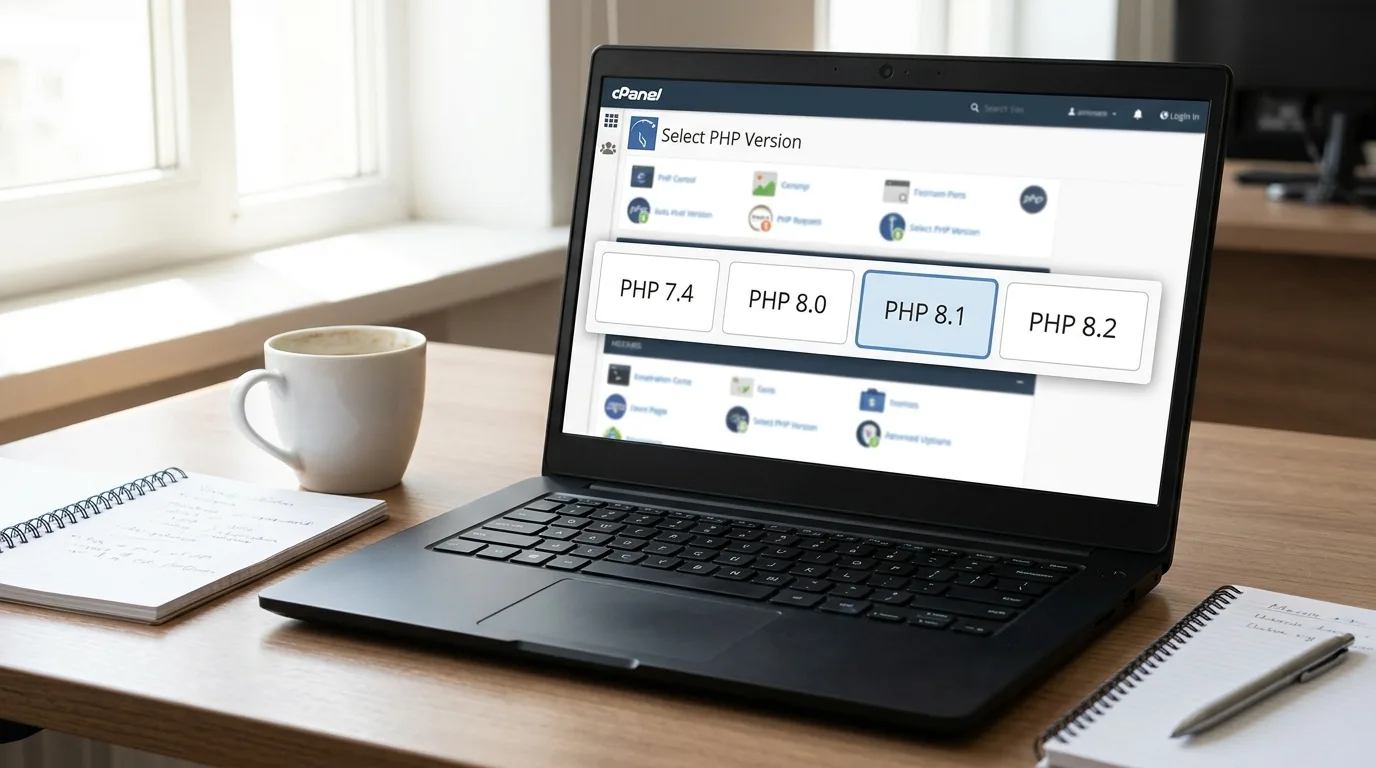
Every uncached hit — first visits, logged-in users, carts, checkouts — runs at the speed of your PHP. PHP 8.x executes WordPress dramatically faster than the 7.x versions still quietly running on a huge share of hosting accounts. In cPanel, find Select PHP Version and move to 8.1 or newer, ideally after a staging test. If an old plugin isn’t compatible it will announce itself with a fatal error rather than a slow one — my HTTP 500 error guide covers identifying and rolling back the offender.
Fix 10: Upgrade Your Hosting (the Honest Answer)
If your cached pages are fast but the uncached ones still drag, if TTFB won’t drop below a second no matter what, if your host has never heard of Redis — the machine is the ceiling, and no plugin raises a ceiling. What to look for when you move: a LiteSpeed server (so everything in this article works at server level), NVMe storage, PHP 8.2+, Redis available, and an honest CPU allocation.
It’s the same story I keep writing from different angles: the budget plans behind chronic slowness are the same ones behind intermittent “Error establishing a database connection” outages. One hosting upgrade retires a whole category of problems at once.
How to Keep It Fast
- Retest after every install: a two-minute PageSpeed run when you add anything significant catches weight before visitors do.
- Image discipline at upload: resize and compress before a file ever enters the media library — cleanup is ten times the work of prevention.
- Check your two money pages monthly and watch trends, not single readings — a score drifting down is growth outpacing your setup.
- Say yes to PHP upgrades when your host offers them, after a staging test.
- Purge and retest after any update that touches the front end — themes, builders, optimization plugins.
Frequently Asked Questions
Why is my WordPress site loading slowly on mobile but fine on desktop?
Because mobile tests simulate a mid-range phone on a throttled connection, so every oversized image and extra script costs several times more than on desktop. Google indexes and ranks the mobile version, so treat the mobile score as the real one — fix images, fonts, and JavaScript weight first and the desktop score takes care of itself.
How fast should a WordPress site load?
Aim for the Core Web Vitals thresholds: main content visible (LCP) in under 2.5 seconds and server response (TTFB) under 800 milliseconds, measured on mobile. A site that shows its content within about two seconds feels instant to visitors — chasing a perfect 100 score beyond that is effort better spent elsewhere.
Will a caching plugin break my site?
Page caching itself almost never breaks anything — it only serves saved copies of pages. The optimizer half of those plugins (combining, minifying, and deferring CSS and JavaScript) is what occasionally blanks a layout. Enable those switches one at a time, purge, and test after each, and the risk drops to nearly zero.
Do too many plugins make WordPress slow?
It’s the weight, not the count. A plugin only slows the front end if it loads assets or runs queries on your pages — thirty lean plugins can cost less than one bloated slider. PageSpeed Insights and Query Monitor name the heavy ones, so you can cut with precision instead of superstition.
Does a slow WordPress site hurt SEO?
Yes, twice over. Core Web Vitals are a direct, if modest, ranking signal — but the bigger damage is behavioral: slow pages get abandoned, and rising bounce with falling engagement drags rankings over time. Speed is a user-experience investment that Google happens to reward.
Wrapping Up
A slow WordPress site is a diagnosis problem wearing a to-do-list costume. Five minutes in PageSpeed Insights tells you which of the three buckets is yours; caching, images, and script discipline do the heavy lifting; PHP and hosting set the ceiling. Work your bucket first — that’s where the seconds are.
Or skip the weekend of toggles entirely — speed optimization is the service I’m hired for most, and I’ve yet to meet a WordPress site I couldn’t make meaningfully faster. Get in touch and I’ll find your seconds.
Shahbaz Ali is a senior WordPress developer with 6+ years of agency experience, specializing in WordPress development, speed optimization, and emergency fixes.