


“Have you tried clearing the cache?” is the web’s oldest advice — and it’s genuinely good advice, except for one problem: your WordPress site doesn’t have a cache. It has up to five, stacked on top of each other, and clearing the wrong one proves nothing while the stale layer keeps serving old content. I did this dance myself this week: edited my site’s CSS, reloaded, and stared at an unchanged page like it had personally betrayed me.
So this guide does it properly. After six-plus years of untangling WordPress sites, here’s every cache layer your site actually has, how to clear each one, the right order to do it in — and, just as important, when clearing the cache is the wrong fix entirely.
Quick answer: To clear your WordPress cache, purge your caching plugin first (LiteSpeed Cache → Toolbox → Purge All, or your plugin’s Clear Cache button), then any host-level cache in your hosting panel, then your CDN (Cloudflare → Caching → Purge Everything), and finally hard-refresh your browser with Ctrl+Shift+R. If changes still don’t appear, flush the object cache — and if the problem was never staleness, skip to the last section.
The Five Cache Layers (and Why Order Matters)
This guide is part of my complete guide to fixing common WordPress errors — the hub that maps every common error to its fix.
A request to your site passes through a chain, and any link in it can serve a saved copy:
- Browser cache — your visitor’s own computer keeps copies of CSS, JS, and images.
- CDN cache — Cloudflare, QUIC.cloud, or similar, serving copies from a server near the visitor.
- Page cache — your caching plugin or LiteSpeed server, storing whole rendered pages.
- Host-level cache — an extra caching layer many hosts run on top of everything you control.
- Object cache — Redis or Memcached, storing database query results in memory.
When you troubleshoot, purge from the origin outward: plugin and host first, CDN second, browser last. Do it backwards and you’ll hard-refresh your way into fresh copies of stale pages — the CDN happily re-serves the old version it still holds. Work the methods below in the order they appear.
Method 1: Clear Your Caching Plugin’s Cache
This is the layer that holds your rendered pages, so it’s where most staleness lives.
LiteSpeed Cache
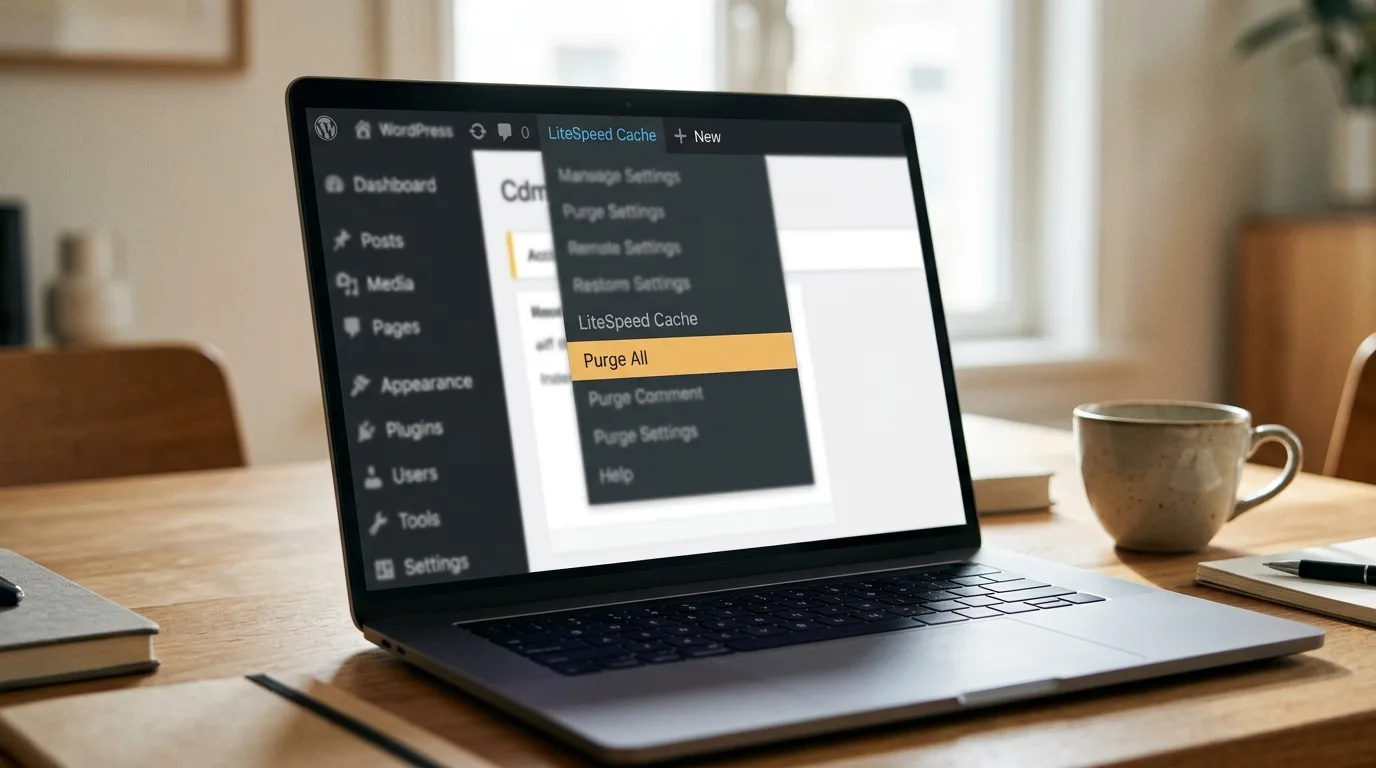
Two routes: hover the LiteSpeed icon in the admin bar and hit Purge All, or go to LiteSpeed Cache → Toolbox → Purge for the full menu — including targeted purges (a single URL, a category, just the CSS/JS) so you don’t have to empty everything for one changed page. On a LiteSpeed server this clears the server-level page cache, which is the whole show.
WP Rocket
Hover the WP Rocket entry in the admin bar and choose Clear cache, or use Settings → WP Rocket → Dashboard → Clear cache. If you’ve changed CSS or JavaScript, also regenerate the critical CSS from the same dashboard.
W3 Total Cache
Admin bar → Performance → Purge All Caches. W3TC runs several cache types at once (page, object, database, browser rules), and that one entry empties the lot.
WP Super Cache / WP Fastest Cache
WP Super Cache: Settings → WP Super Cache → Delete Cache. WP Fastest Cache: its own menu → Delete Cache tab, where “Delete Cache and Minified CSS/JS” is the one to press after styling changes.
Method 2: Clear the Host-Level Cache
Many hosts run their own caching layer above your plugin — and it’s the layer people forget exists. On Hostinger, it’s in hPanel under Websites → Dashboard → Cache Manager → Purge All. SiteGround puts it in the Speed Optimizer plugin’s Purge SG Cache button. Managed WordPress hosts like WP Engine and Kinsta have a Clear/Purge Cache button front and center in their dashboards, and GoDaddy’s managed WordPress does the same under Flush Cache. If you’re not sure whether your host caches, look for “cache” anywhere in the hosting panel — if the button exists, the layer exists.
Method 3: Purge the CDN
If Cloudflare sits in front of your site: Caching → Configuration → Purge Everything, or better, Custom Purge with the exact URL you changed — a full purge empties copies worldwide and briefly slows the site for everyone while the cache rebuilds. On the LiteSpeed stack, QUIC.cloud purges are triggered from the same LiteSpeed Cache purge menu, which is one of the quiet advantages of that pairing. And remember Cloudflare’s Development Mode exists exactly for styling sessions: three hours of bypassing the CDN cache while you work.

Method 4: Flush the Object Cache
The object cache (Redis or Memcached) stores database query results, not pages — so it’s rarely the reason a page looks stale, but it can hold onto old options and transients after big changes. Flush it from LiteSpeed Cache → Cache → Object → Flush All, from your Redis plugin’s settings page, or from your host’s panel. It refills itself automatically; flushing costs a brief warm-up, nothing more.
Method 5: The Browser (Last, Not First)
Once the server layers are purged, hard-refresh with Ctrl+Shift+R (Windows) or Cmd+Shift+R (Mac) — that reloads the page ignoring the browser’s saved copies. For a second opinion that bypasses your browser history entirely, open the page in an incognito window. There’s no need to nuke your whole browser cache and log yourself out of the internet; the hard refresh targets just the page in question.
The WP-CLI Shortcut
If you have terminal access, one command flushes the object cache directly:
wp cache flushMost caching plugins register their own commands too — LiteSpeed Cache, for example, can purge everything from the command line, which makes cache clearing scriptable in deployments. If you ship changes through any kind of pipeline, purging belongs at the end of it, not in your muscle memory.
When Clearing the Cache Fixes Things — and When It Doesn’t
Purging is the right move when the problem is staleness: CSS or design changes not showing, an edited page still displaying old text, prices or stock levels lagging after an update, or a plugin’s changes appearing for you (logged in, uncached) but not for visitors.
It is the wrong move — a superstition, really — for actual failures. A 500 error is PHP crashing, and no purge fixes crashed code. The “there has been a critical error” screen is the same family. A slow wp-admin can’t be cache-fixed because the admin is never cached in the first place. And if the site is simply slow everywhere, purging actually makes it briefly slower — every page has to rebuild — because the real fix is making the underlying site faster, then letting the cache do its job.
Don’t Over-Purge
One habit worth breaking: hitting Purge All after every tiny edit. Modern caching plugins purge intelligently on their own — LiteSpeed automatically clears a post’s cache (and the affected archive pages) the moment you update it. Every unnecessary full purge resets your cache hit ratio to zero and hands your next few hundred visitors slow, uncached pages. Save Purge All for site-wide changes: theme updates, CSS edits, menu changes, plugin updates that touch the front end. For everything else, trust the automation or purge the single URL.

Frequently Asked Questions
Should I clear my WordPress cache regularly?
No — cache clearing should be event-driven, not scheduled. Purge when you change something site-wide (theme, CSS, menus, front-end plugins) or when you see stale content. A cache that’s regularly emptied for no reason is a cache that’s never doing its job, and your visitors pay for it in slower first loads.
Does WordPress have a built-in cache?
Not a page cache. WordPress core includes a non-persistent object cache that lasts only for a single page load; the caching that actually speeds up your site — saved pages, Redis, CDN copies — comes from plugins, your host, or services you add. That’s why clearing cache always means clearing a specific tool’s cache.
How do I clear WordPress cache without a plugin?
Work the other layers: purge the host-level cache from your hosting panel, purge the CDN from its dashboard (Cloudflare: Caching, then Purge), and hard-refresh the browser with Ctrl+Shift+R. If no caching plugin is installed and the host has none, WordPress itself isn’t page-caching — what you’re seeing is browser or CDN staleness.
Why are my changes still not showing after clearing the cache?
You cleared one layer and a different one is serving the old copy. Run the full order: caching plugin, host cache, CDN purge, then a hard refresh or incognito window. Also check the unglamorous causes — you edited staging instead of live, the change didn’t save, or an optimization plugin is serving old minified CSS that needs regenerating.
Does clearing the cache delete any content or data?
No. Every cache layer holds disposable copies — your posts, settings, images, and orders live in the database and file system, untouched by any purge. The only cost of clearing is temporary: the next visitors get slightly slower pages while the cache rebuilds itself.
Wrapping Up
Five layers, one order: plugin, host, CDN, object cache, browser. Purge from the origin outward, purge for staleness rather than superstition, and let the automation handle the routine. The cache is on your side — it just occasionally needs reminding whose site this is.
And if the problem behind the purging turns out to be a slow or misbehaving site rather than a stale one — that’s the work I do all week. Get in touch and I’ll take a look.
Shahbaz Ali is a senior WordPress developer with 6+ years of agency experience, specializing in WordPress development, speed optimization, and emergency fixes.