


Your website loads fine — maybe you’ve even got it scoring green in PageSpeed. But the moment you log in, everything changes: the dashboard takes ten seconds to appear, the post editor lags behind your typing, and saving a WooCommerce product feels like filing paperwork at a government office.
This is one of the most common complaints I hear from site owners, and it comes with a strange twist: a slow admin is invisible to your visitors, so it never feels urgent enough to fix. Meanwhile it quietly taxes every edit, order, and update you make. After six-plus years of speeding up WordPress sites, I can tell you the backend is almost always fixable — and the causes are more predictable than you’d think.
Quick answer: A slow WordPress admin usually comes down to heavy plugins, an overworked PHP process, bloated autoloaded data in the database, or underpowered hosting. Your caching plugin can’t hide any of it, because wp-admin is never served from cache. Diagnose with Query Monitor first — it names the culprit — then work through plugins, memory, PHP version, the Heartbeat API, database bloat, and hosting.
Why the Admin Is Slow When Your Site Feels Fast
This guide is part of my complete guide to fixing common WordPress errors — the hub that maps every common error to its fix.
Every speed optimization you’ve made so far — page caching, a CDN, image compression — works by serving visitors a saved copy of your pages. The admin gets none of that. Every click inside wp-admin runs PHP from scratch, queries the database live, and renders for exactly one logged-in person: you.
That makes the dashboard an X-ray of your site’s true, uncached speed. A slow backend means the raw machinery — plugins, database, PHP, server — is slow, and your visitors feel a milder version of it too, every time they hit an uncached page or add something to a cart.
And when it’s the front end your visitors feel dragging — the site itself rather than the dashboard — that side has its own diagnosis-first checklist: my guide to fixing a slow-loading WordPress site.
The upside: because nothing is masked by caching, the causes are easy to expose. Here they are, in the order I actually check them on client sites.
Before You Touch Anything
- Put a number on it. Time how long the dashboard and the post editor take to load right now — a stopwatch is fine, the browser’s Network tab is better. Without a baseline you’ll never know which fix actually worked.
- Recall what changed. A new plugin, a growing WooCommerce order book, a host-side change, a PHP update — admin slowness that appeared recently almost always has a recent cause.
Fix 1: Let Query Monitor Name the Culprit
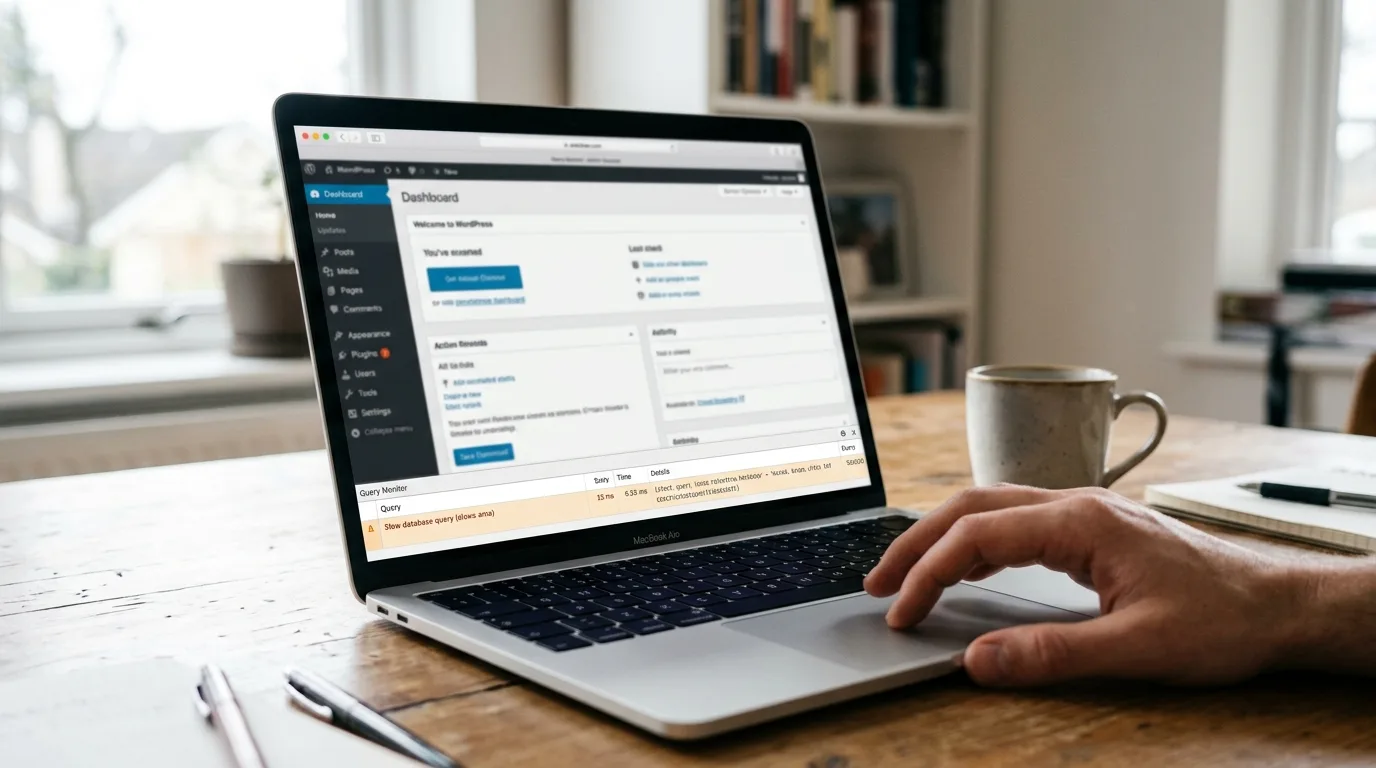
Don’t guess — measure. Install the free Query Monitor plugin and reload any slow admin screen. The admin-bar readout shows total page generation time and database query time; the panels behind it show exactly where those seconds went:
- Queries by Component ranks plugins by how much database time each one is burning.
- HTTP API Calls exposes plugins making external requests that block the page (more on those in Fix 10).
- Object Cache stats tell you in advance whether Fix 8 will pay off.
Ten minutes here usually points at one or two names — which turns the rest of this list from trial-and-error into a checklist. One habit worth keeping: deactivate Query Monitor when you’re done, since it adds a little overhead of its own.
Fix 2: Find and Replace the Heavy Plugin
The single most common cause. It’s rarely about how many plugins you have — it’s about the one or two heavy ones. The usual suspects from my client work:
- Broken-link checkers that scan your whole site in the background
- Statistics plugins that write every single visit into your own database
- Related-posts plugins that compare every post against every other post
- Security suites running scans on admin page loads
- Anything that keeps large logs in the database
If Query Monitor named a plugin, deactivate it and re-time the dashboard. If you’re flying blind, deactivate half your plugins, test, and keep halving — a binary search finds the culprit in minutes even on a 40-plugin site. Then replace it with a lighter alternative or an off-site service (analytics is the classic example: a hosted tool costs your database nothing).
Fix 3: Give the Admin More Memory
WordPress actually has two memory limits, and most guides only mention the wrong one. WP_MEMORY_LIMIT governs the front end; the admin uses the separate WP_MAX_MEMORY_LIMIT, which defaults to 256M. On plugin-heavy or WooCommerce sites, admin screens run close to that ceiling — and PHP crawling along at the edge of its memory allowance is exactly what a laggy backend feels like.
define( 'WP_MEMORY_LIMIT', '256M' );
define( 'WP_MAX_MEMORY_LIMIT', '512M' );
Add both to wp-config.php above the /* That's all, stop editing! */ line. The wp-config reference documents them, and your hosting plan sets the hard ceiling — if the server caps PHP lower, raise it in your hosting panel or ask support. And if memory actually runs out instead of merely running low, you’ll graduate from a slow admin to a crashed one — that scenario is covered in my guide to fixing the WordPress critical error.
Fix 4: Update Your PHP Version
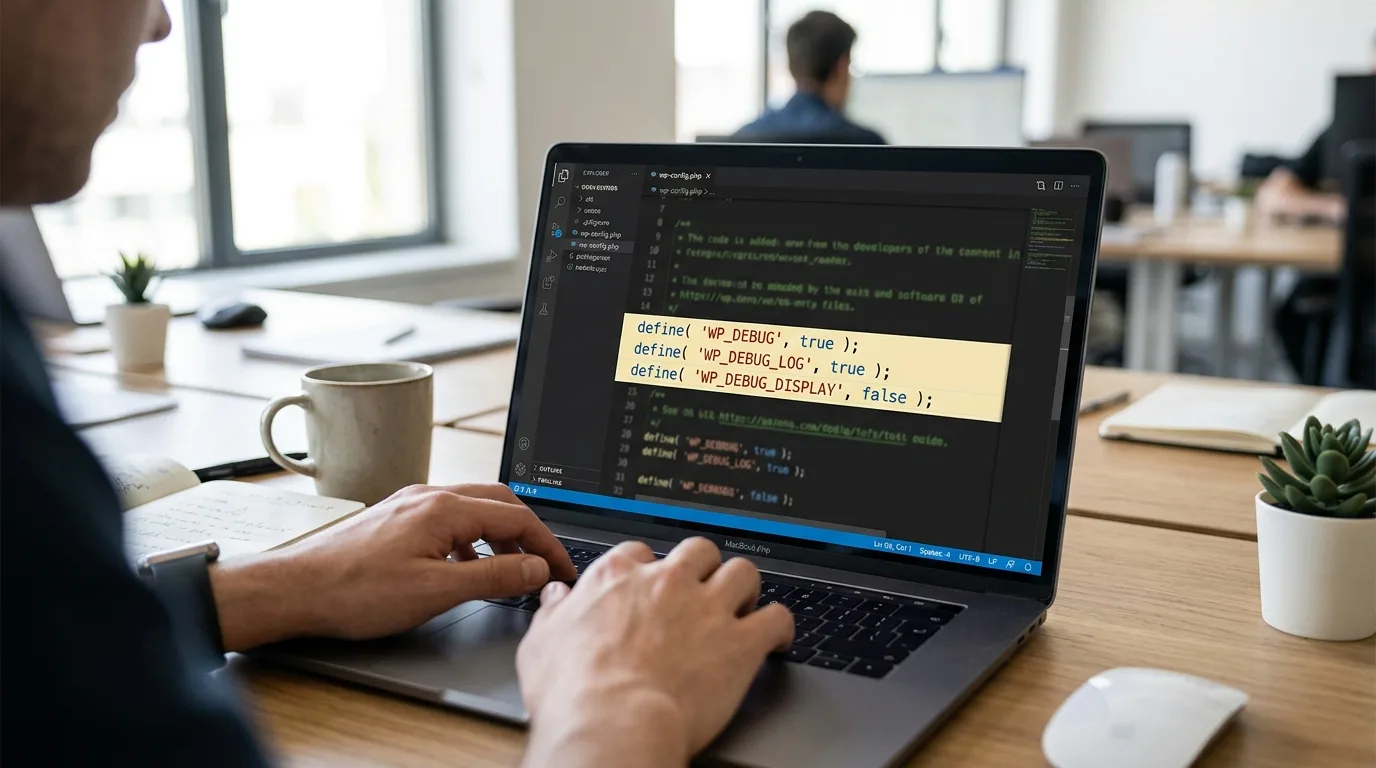
One generation of PHP is the biggest free speed upgrade your host is holding for you. PHP 8.x executes WordPress dramatically faster than the 7.x versions still running on a shocking number of servers — and the uncached admin is exactly where you feel the difference most.
In cPanel, look for Select PHP Version or “MultiPHP Manager” and move to PHP 8.1 or newer. Test the site right after — or better, switch on staging first. A plugin that isn’t compatible will announce itself with a fatal error rather than a slow one; my HTTP 500 error guide walks through identifying and rolling back the offender if that happens.
Fix 5: Tame the Heartbeat API
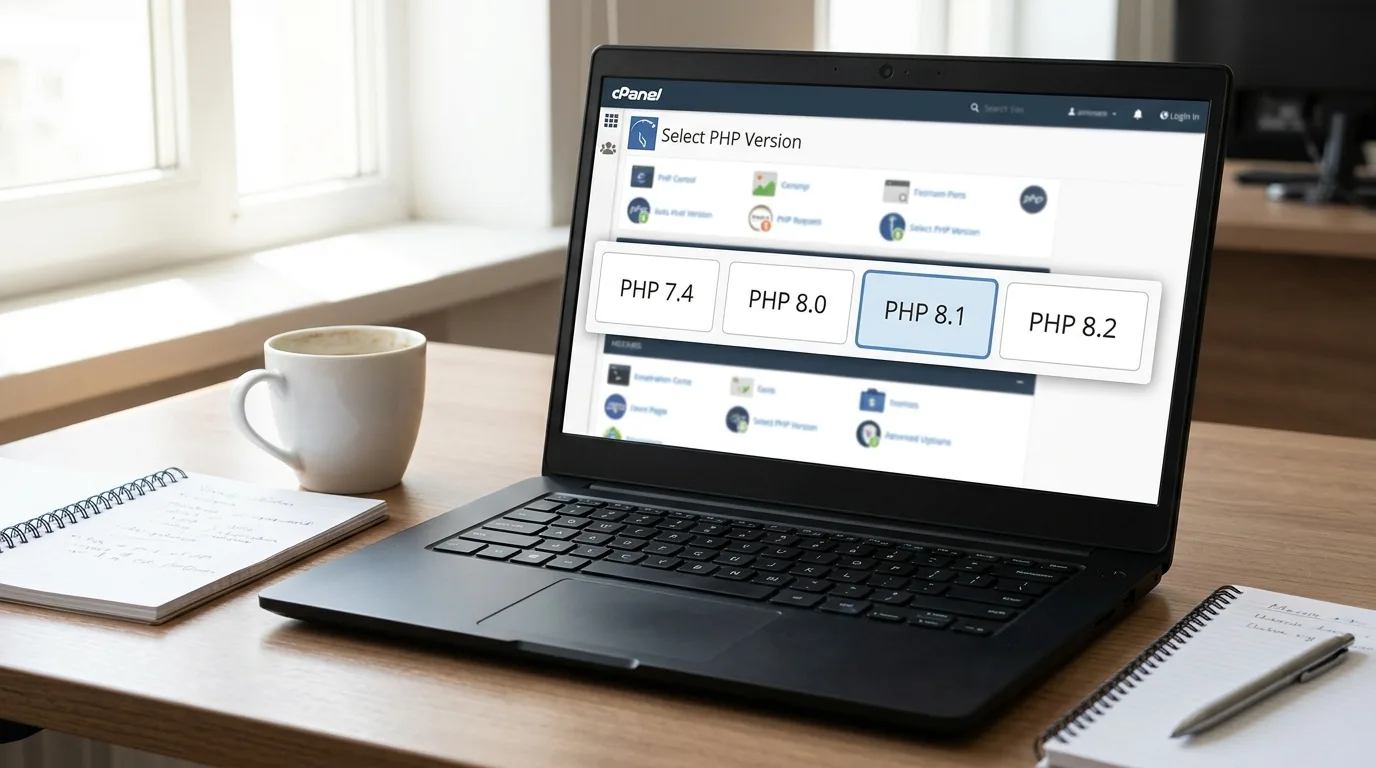
While you sit in wp-admin, WordPress quietly pings the server in the background — every 15 seconds in the post editor, every minute elsewhere — to power autosave, post locking, and real-time notices. Each pulse is a full, uncached request. Leave a few admin tabs open on shared hosting and the Heartbeat API alone can eat a meaningful slice of your CPU allowance.
You may not even need a new plugin for this one: LiteSpeed Cache → Toolbox → Heartbeat lets you slow it down per area. My usual settings: front end off, dashboard at 60–120 seconds, editor at 60 seconds — never fully off in the editor, or you lose autosave. Not on LiteSpeed? The free Heartbeat Control plugin does the same job.
Fix 6: Shrink Your Autoloaded Options (the Hidden Killer)
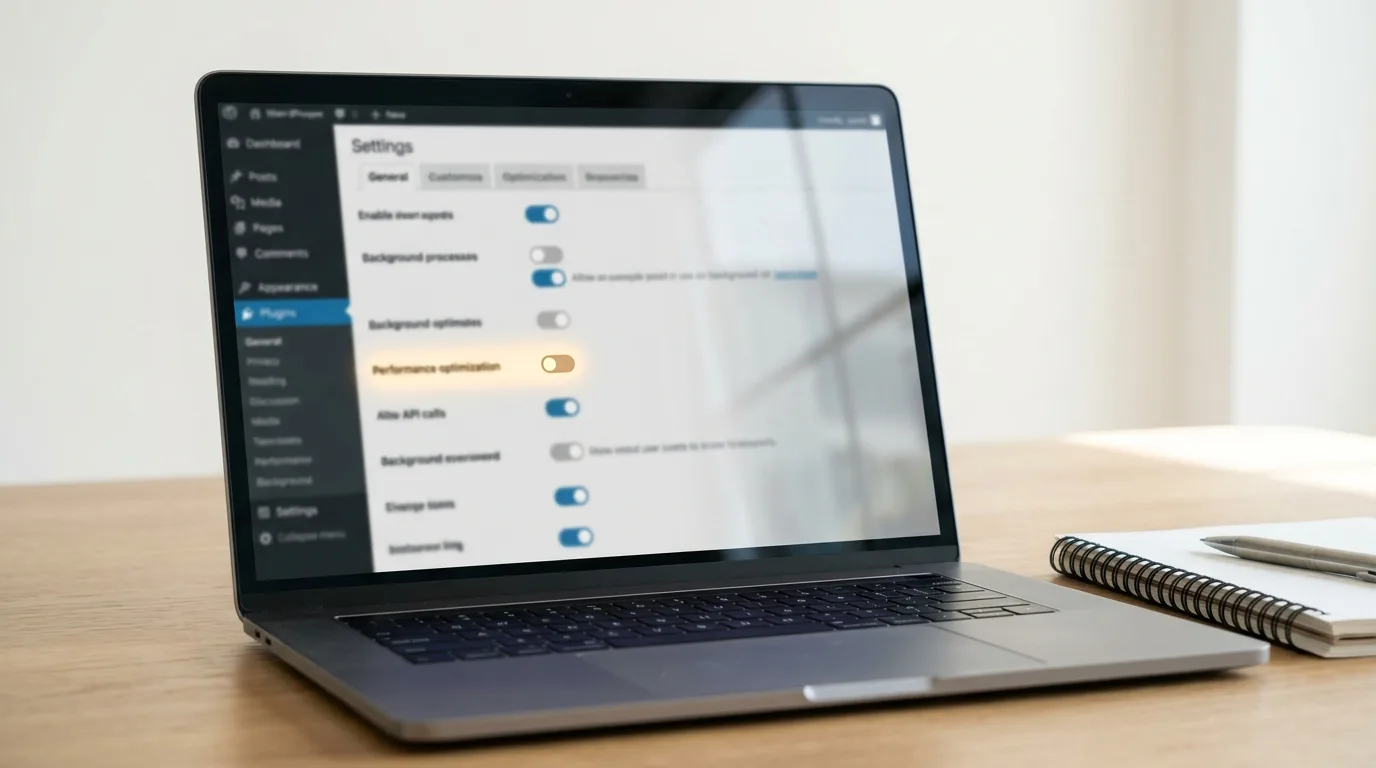
Here’s the fix nobody’s dashboard widget tells them about. The wp_options table has an autoload flag, and every row marked for autoloading is fetched on every single page load — front end and every admin click alike. Plugins dump settings, caches, and logs in there, and deleted plugins leave their rows behind forever. A healthy site autoloads well under 1 MB; I’ve audited sites dragging 20 MB through memory on every request, and their dashboards felt exactly like you’d expect.
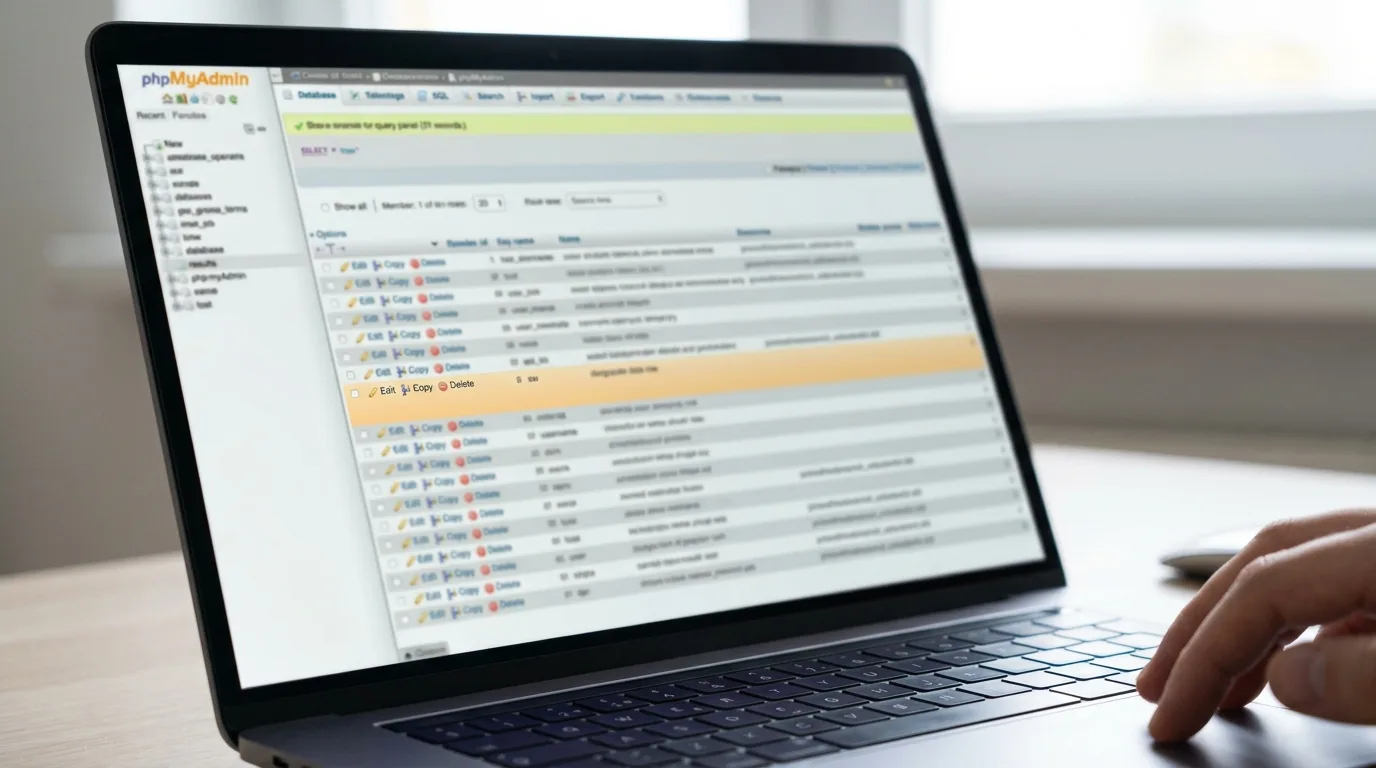
Check yours in phpMyAdmin with this query:
SELECT ROUND(SUM(LENGTH(option_value))/1024/1024, 2) AS autoload_mb
FROM wp_options
WHERE autoload IN ('yes', 'on', 'auto', 'auto-on');
Over a megabyte? List the worst offenders:
SELECT option_name, ROUND(LENGTH(option_value)/1024, 1) AS size_kb
FROM wp_options
WHERE autoload IN ('yes', 'on', 'auto', 'auto-on')
ORDER BY LENGTH(option_value) DESC
LIMIT 20;
Rows from plugins you removed years ago can be deleted; oversized rows from active plugins can usually be set to autoload = 'no' so they only load when needed. Back up the database before touching anything — this is the one fix on this list where a wrong DELETE genuinely hurts.
Fix 7: Clean Up the Rest of the Database
Beyond autoload, the usual sediment builds up: hundreds of revisions per page, expired transients, spam and trashed comments, and orphaned rows from long-gone plugins. Every admin list screen wades through it. LiteSpeed Cache → Database cleans all of it in one pass — and shows your autoloaded-data total while it’s at it.
Then stop the biggest source at the tap by capping revisions in wp-config.php:
define( 'WP_POST_REVISIONS', 10 );Ten is plenty of undo history for real work. As always with database surgery: backup first.
Fix 8: Add an Object Cache
Page caching does nothing for the admin — but object caching is a different animal, and it’s the one cache type wp-admin actually benefits from. It keeps the results of repeated database queries in memory (Redis or Memcached), so the hundreds of small lookups behind every admin screen stop hitting MySQL individually.
Ask your host whether Redis is available, then enable it under LiteSpeed Cache → Cache → Object. The difference is most dramatic on WooCommerce stores, where the admin fires far more queries than any front-end page. If your host shrugs at the word “Redis” — file that thought under Fix 12.
Fix 9: Declutter the Dashboard and List Screens
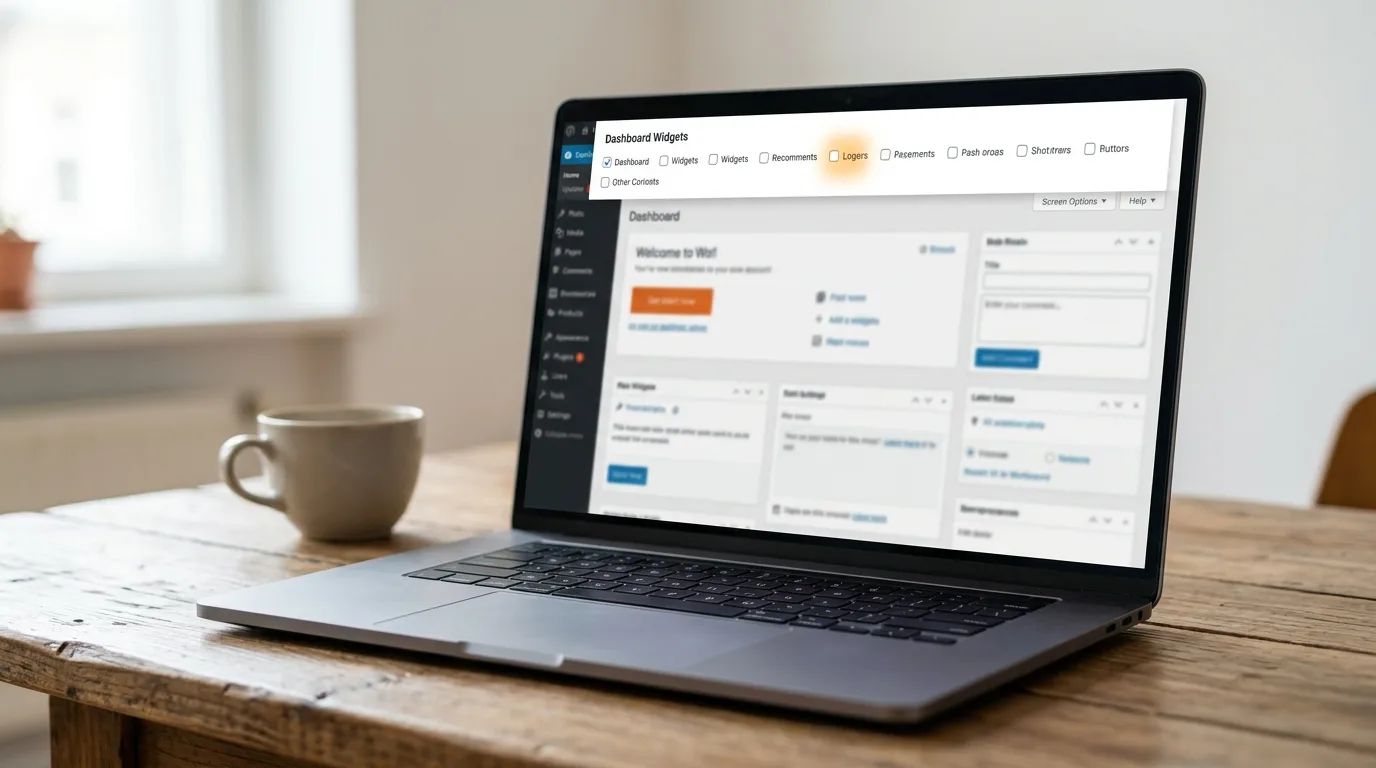
Some of the slowness is the admin doing pointless work in plain sight:
- Dashboard widgets: open Screen Options (top right) and untick what you don’t use. The WordPress Events and News widget makes an external web request just to render; WooCommerce status widgets run real reports.
- Items per page: the same Screen Options panel on the Posts, Orders, and Products screens controls how many rows load at once. A list of 200 orders with all their metadata is genuinely heavy — 20 to 40 is the sweet spot.
- Notice spam: a dashboard buried in plugin upgrade banners is a symptom worth reading — those same plugins are usually loading their marketing machinery on every admin page.
Fix 10: Hunt Down Slow External Calls
Here’s the pattern behind the mysterious version of this problem — the admin that’s fine all week, then takes thirty seconds at random: a plugin is phoning home. License checks, update pings, news feeds, remote fonts. When the remote server is slow or down, your admin page stands there waiting for the timeout.
Query Monitor’s HTTP API Calls panel catches them red-handed, with the exact hostname and how long it stalled. The fix is per-plugin: update it, replace it, or report it to the developer. (There is a wp-config constant that blocks all external requests, but it also breaks update checks — leave that one to tightly controlled environments.)
Fix 11: Fix a Backed-Up WP-Cron
WordPress has no real clock. Scheduled tasks — publishing, backups, scans, cleanups — run whenever someone happens to load a page. On low-traffic sites the queue backs up, and then some unlucky page load (often yours, in the admin) triggers the whole backlog at once.
Install WP Crontrol and open its events list: dozens of overdue jobs, or one plugin scheduling itself hundreds of times, confirms the diagnosis. The proper fix is to take cron off your page loads entirely. First, in wp-config.php:
define( 'DISABLE_WP_CRON', true );Then create a real cron job in your hosting panel that calls wp-cron.php every five to ten minutes:
*/10 * * * * wget -q -O - https://yoursite.com/wp-cron.php?doing_wp_cron >/dev/null 2>&1Scheduled tasks now run on schedule, off to the side, instead of piggybacking on whoever loads a page — including you.
The same backed-up cron has a second symptom worth knowing: scheduled posts that quietly fail to publish. If you’ve seen that, my guide to fixing the WordPress missed schedule error covers the permanent cron fix from the publishing side.
Fix 12: Upgrade Your Hosting (the Honest Answer)
Time for the blunt advice you’d get if you hired me: if you’ve worked Fixes 1–11 and the dashboard still crawls, the machine itself is the problem. The admin is a raw CPU test, and cheap shared hosting passes it by throttling you — the same overloaded plans behind the intermittent “Error establishing a database connection” outages I’ve written about before. No setting overcomes a throttled processor.
What actually matters when you move: a current PHP version, NVMe storage, Redis available, an honest CPU allocation, and — given how much of this article leaned on it — a LiteSpeed server, since the LiteSpeed Cache plugin’s best features only work there. On decent hosting the dashboard shouldn’t just be tolerable; it should feel instant.
How to Keep the Admin Fast
- Audit plugins quarterly — and delete what you deactivate; abandoned plugins keep their autoloaded rows either way.
- Say yes to PHP upgrades when your host offers them, after a staging test.
- Keep the database on a leash: revisions capped, LiteSpeed’s database cleanup run monthly.
- Re-run Query Monitor after installing anything significant — it’s easier to reject a heavy plugin on day one than to hunt it down in a year.
- Watch trends, not moments: if the dashboard gets a second slower every month, that’s growth outpacing your hosting — plan the move before it becomes an emergency.
Frequently Asked Questions
Why is my WordPress admin slow when the website itself loads fast?
Because your visitors get cached copies of pages, while wp-admin runs live PHP and fresh database queries on every click — caching plugins deliberately skip the admin. A slow backend is your site’s true uncached speed showing through, which is why the fixes are plugins, database, PHP, and hosting rather than more caching.
Will a caching plugin speed up wp-admin?
Page caching won’t — the admin is never page-cached. But parts of a good caching plugin still help the backend: LiteSpeed Cache’s object cache accelerates admin queries, its database cleanup removes drag, and its Heartbeat control cuts background load. It’s only the page-cache half that’s irrelevant back here.
How many plugins are too many for WordPress?
It’s the wrong question — weight matters, not count. Thirty well-built plugins can be lighter than three heavy ones. Measure with Query Monitor: if a plugin adds serious query time or slow external calls, it’s too heavy at any count.
Does a slow WordPress admin affect SEO?
Not directly — Google never sees wp-admin. But the root causes (weak hosting, a bloated database, old PHP) also inflate your front end’s server response time, which visitors and rankings do feel. Treat a slow admin as an early warning for the speed your visitors will experience next.
Can a slow admin mean my site is hacked?
Occasionally, yes. Malware sending spam or running background jobs eats the same CPU your dashboard needs, so a sudden unexplained slowdown — especially alongside strange admin users or redirects — deserves a malware scan in parallel with the fixes above.
Wrapping Up
A slow WordPress admin isn’t a mood; it’s a measurement. Let Query Monitor name the culprit, deal with the heavy plugin, give PHP a modern version and enough memory, quiet the Heartbeat, drain the database bloat, and be honest about your hosting. Work the list and the dashboard that made you sigh this morning will feel like a different site by tonight.
And if you’d rather skip straight to the result — making WordPress fast is literally what I’m hired for most. Get in touch and I’ll find what’s dragging yours.
Shahbaz Ali is a senior WordPress developer with 6+ years of agency experience, specializing in WordPress development, speed optimization, and emergency fixes.