

Your site was working an hour ago. Now every page — the homepage, your blog, even wp-admin — shows a plain white screen with a single line of text: Error establishing a database connection.
Take a breath. After six-plus years of fixing WordPress sites, this is one of the errors I get called about most, and it is almost never as bad as it looks. Your posts, pages, and orders are still sitting safely in the database. WordPress just can’t reach them right now.
This guide walks through every realistic cause in the order I actually check them on client sites — starting with a 30-second fix that solves most cases.
This guide is part of my complete guide to fixing common WordPress errors — the hub that maps every common error to its fix.
Quick answer: “Error establishing a database connection” means WordPress can’t connect to its MySQL database. The most common causes, in order: wrong database credentials in wp-config.php (especially after a migration), a crashed or overloaded database server, a corrupted database, or exhausted hosting resources. Check your credentials first, then repair the database, then contact your host.
What This Error Actually Means
WordPress stores everything — posts, pages, settings, users, WooCommerce orders — in a MySQL database. On every page load, PHP connects to that database using four values saved in your wp-config.php file: the database name, username, password, and host. If any one of those values is wrong, or the database server doesn’t respond, WordPress stops and prints this error instead of your site.
So the cause is always one of three things: wrong login details, a database server that isn’t answering, or a corrupted database.
One diagnostic clue before you start: open yoursite.com/wp-admin. If the error there is different — something like “One or more database tables are unavailable. The database may need to be repaired” — your database is corrupted, and you can jump straight to Fix 4.
Before You Touch Anything
Two minutes of prep will save you hours:
- Take a backup, even now. You can still download your files over FTP and export the database from phpMyAdmin (or take a snapshot in your hosting panel) while the site is down. If a fix goes wrong, you’ll be glad you did.
- Think about what changed. Did you just migrate hosts? Install a plugin? Change a password? Get a traffic spike? The answer usually points directly at the fix.
Fix 1: Check Your Database Credentials in wp-config.php
This is the number one cause I see, especially right after a site migration or a hosting password change.
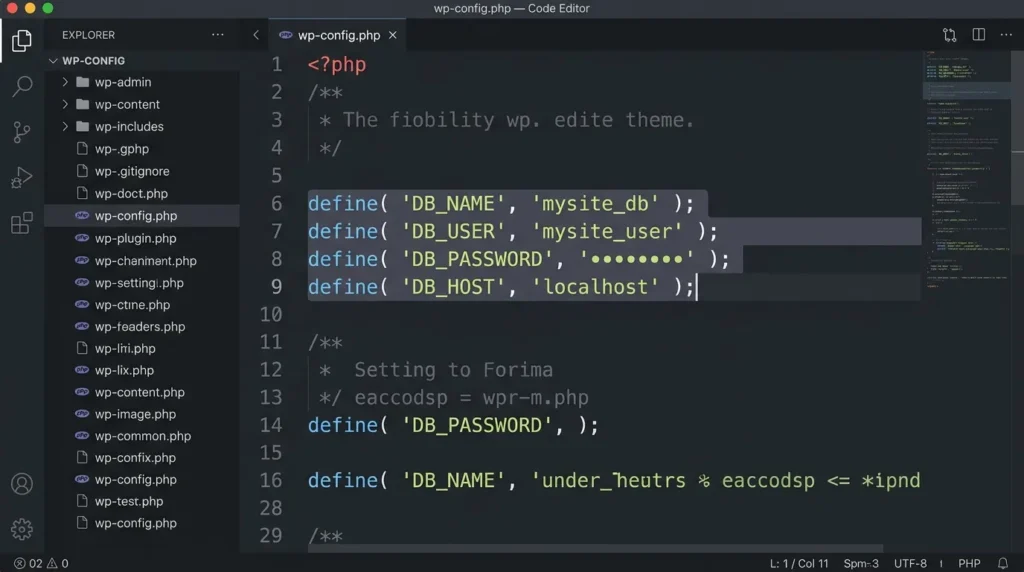
Connect to your site with FTP or your host’s File Manager, open wp-config.php in the site root, and find these four lines:
define( 'DB_NAME', 'database_name_here' );
define( 'DB_USER', 'username_here' );
define( 'DB_PASSWORD', 'password_here' );
define( 'DB_HOST', 'localhost' );
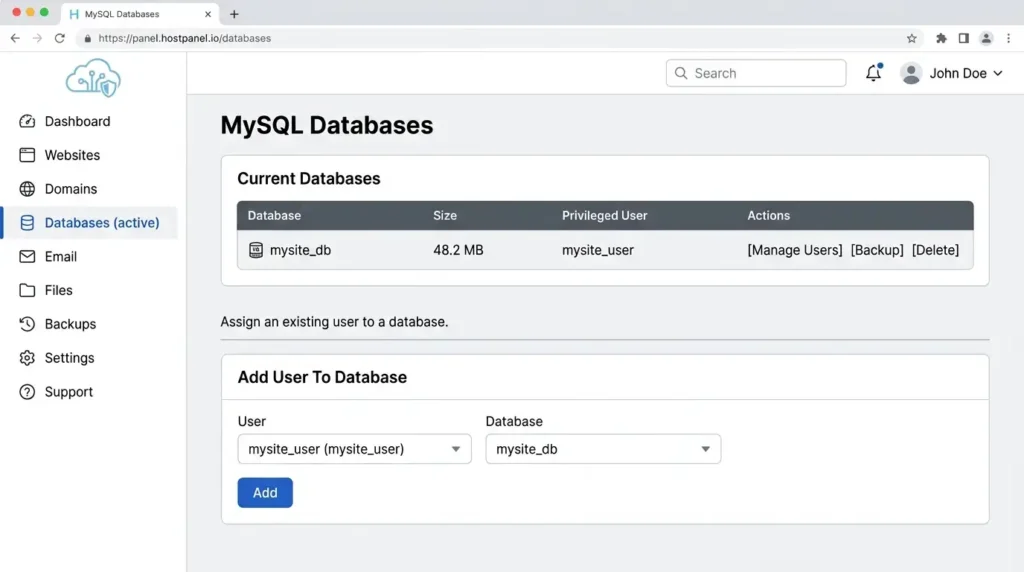
Now compare them against what your hosting account actually says. In cPanel, go to MySQL Databases — you’ll see the list of databases and users. Three things must all be true:
- The database in DB_NAME exists, spelled exactly the same.
- The user in DB_USER exists.
- That user is assigned to that database with all privileges (scroll down to “Add User To Database” in cPanel — an unassigned user is a classic migration leftover).
Can’t verify the password? Don’t guess. Reset it: in cPanel’s MySQL Databases screen, set a new password for the database user, then paste the same password into DB_PASSWORD in wp-config.php and save. The official wp-config.php reference documents every value in this file if you want the full details.
Reload your site. In my experience this alone resolves the majority of cases.
Fix 2: Confirm the Database Host Value
DB_HOST is localhost on most cPanel-style hosting, but not everywhere. Some managed and cloud hosts use a custom hostname, an IP, or a port:
define( 'DB_HOST', 'localhost' );          // most shared hosting
define( 'DB_HOST', '127.0.0.1:3306' );     // some VPS / custom setups
define( 'DB_HOST', 'mysql.example-host.com' ); // some managed hosts
If you recently moved to a new host, don’t assume localhost still applies. Check your host’s documentation or the database section of your hosting panel — the correct hostname is always listed there.
Fix 3: Test the Connection With a Tiny PHP Script
When you want a definitive answer about which part is failing, test the connection outside WordPress. Create a file called testdb.php with your real credentials and upload it to your site root:
<?php
// testdb.php — DELETE THIS FILE after testing!
$link = mysqli_connect( 'localhost', 'your_db_user', 'your_db_password', 'your_db_name' );

if ( ! $link ) {
    die( 'Connection failed: ' . mysqli_connect_error() );
}
echo 'Database connection is working!';
mysqli_close( $link );
Visit yoursite.com/testdb.php and read the message:
- “Access denied for user…” → wrong username or password → go back to Fix 1.
- “Unknown MySQL server host…” → wrong DB_HOST → Fix 2.
- “Connection refused” or a timeout → the database server itself is down → Fix 5.
- “Connection is working!” → credentials are fine; the database is probably corrupted → Fix 4.
Delete the file as soon as you’re done — it contains your database password and should never stay on a live server.
Fix 4: Repair a Corrupted Database
If wp-admin told you tables are unavailable, or the test script connects but the site still won’t load, run WordPress’s built-in repair tool.
Open wp-config.php and add this line just above the line that says /* That’s all, stop editing! */:
define( 'WP_ALLOW_REPAIR', true );Now visit:
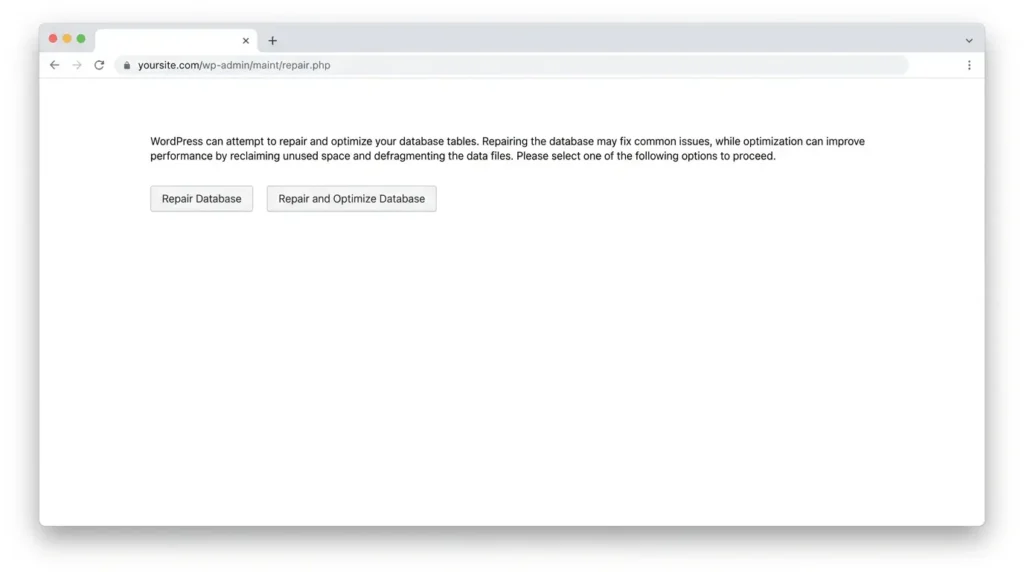
https://yoursite.com/wp-admin/maint/repair.phpClick Repair Database (or Repair and Optimize Database). WordPress will go table by table and fix what it can.
Important: remove the WP_ALLOW_REPAIR line immediately after you’re done. While it’s enabled, that repair page is accessible to anyone — no login required.
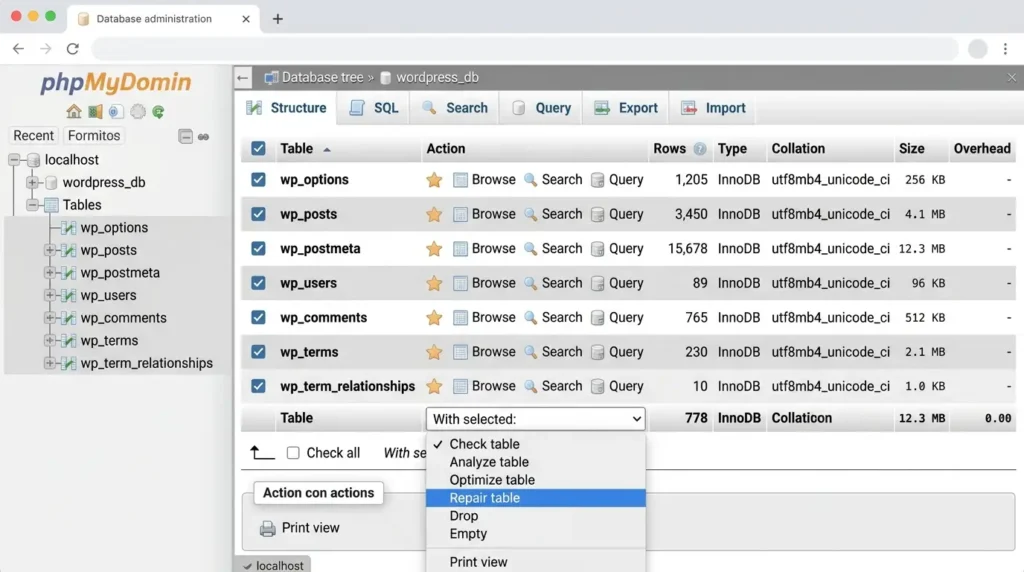
Prefer doing it manually? In phpMyAdmin, select your database, tick all tables, and choose Repair table from the dropdown.
Fix 5: Check Whether Your Database Server Is Down
Sometimes nothing is wrong with your site at all — the MySQL server behind it has crashed or is refusing connections.
On shared hosting: check your host’s status page and open a support ticket. A common variant during traffic spikes is the “too many connections” limit — shared plans cap how many simultaneous database connections you get.
On a VPS or cloud server you manage yourself, restart MySQL over SSH:
sudo systemctl status mysql     # check it
sudo systemctl restart mysql    # restart it
# on some servers the service is called mariadb:
sudo systemctl restart mariadb
If MySQL keeps dying on a small VPS, it’s usually running out of memory — the fix is more RAM or tuning, not another restart.
Fix 6: Rule Out Exhausted Hosting Resources
Budget shared hosting is the hidden cause behind most intermittent versions of this error — the site works, then throws the error under load, then works again. What’s happening: your plan’s limits on concurrent database connections, CPU, or memory are being hit during busy moments.
Two things to check in your hosting panel:
- Disk space. A completely full disk stops MySQL from writing, which can trigger this exact error. Clear old backups and logs if you’re at 100%.
- Resource usage graphs. If you’re regularly bumping against your plan’s CPU or connection limits, no amount of code will fix it.
Blunt advice from someone who does this for a living: if the error comes and goes on a $3/month plan, the real fix is better hosting. Everything else is a band-aid.
One more symptom of the same overloaded plans: a wp-admin that permanently crawls even while the site stays up. That one has its own checklist — my guide to fixing a slow WordPress admin.
Fix 7: Replace Corrupted WordPress Core Files
A failed auto-update or an interrupted upload can corrupt the WordPress files that handle the database connection.
- Download a fresh copy of WordPress from wordpress.org/download.
- Extract it on your computer.
- Over FTP, upload and overwrite only the wp-admin and wp-includes folders.
- Do not touch wp-content (your themes, plugins, uploads) or wp-config.php.
This gives you clean core files without affecting your content or settings.
Fix 8: Just Migrated the Site? Re-Check Everything From Fix 1
Migrations deserve their own mention because they cause this error so reliably. A new host means a new database name, user, and password — and often a different DB_HOST too. Two extra traps:
- Table prefix mismatch. The $table_prefix value in wp-config.php (default wp_) must match the actual prefix of the tables you imported. Open the database in phpMyAdmin and look at the table names — if they start with wpx7_ and your config says wp_, that’s your problem.
- Half-imported database. If the import timed out, tables will be missing. Re-import the full .sql file.
Fix 9: Look for Signs of a Hack
It’s rare, but a compromised site can show this error — malware sometimes corrupts tables, changes database passwords, or adds rogue users.
Warning signs: database users you didn’t create, tables you don’t recognize, or the error appearing alongside other odd behavior (redirects, spam pages in Google).
Once you get the site back online: run a full malware scan with a security plugin, change your hosting, database, and every WordPress admin password, and update everything that’s outdated.
Fix 10: Restore a Backup or Escalate to Your Host
If nothing above worked, it’s time for the last resorts — and how you ask for help matters. When you contact support, give them this, and you’ll cut the resolution time dramatically:
- The exact error and when it started
- What you’ve already ruled out (“credentials verified against cPanel, test script returns Connection refused”)
- A request to check the MySQL error log and your account’s resource limits
If the database itself turns out to be damaged beyond repair, restore your most recent database backup — this is exactly the scenario backups exist for.
Still Stuck? Turn On Debug Logging
WordPress can tell you far more than that one-line error. Add these lines to wp-config.php:
define( 'WP_DEBUG', true );
define( 'WP_DEBUG_LOG', true );
define( 'WP_DEBUG_DISPLAY', false );
Then reload the site and check the log file at wp-content/debug.log — the specific database error will be recorded there. The WordPress debugging handbook explains every debug constant. Turn debug mode off again once you’ve found the culprit.
How to Prevent This Error From Coming Back
The fixes above get you back online; these habits keep you there:
- Automated daily backups. Use your host’s backup system or a plugin like UpdraftPlus sending copies off-server. A database problem is only a disaster if there’s no backup.
- Hosting with headroom. Most recurring database errors trace back to overloaded budget hosting. It’s the single highest-impact upgrade you can make.
- Uptime monitoring. A free monitor pinging your site every few minutes means you find out before your visitors (or clients) do.
- Keep WordPress updated and use a strong, unique database password — and never share one database user across multiple sites.
And since slow and down are cousins: if the site stays up but drags, start with my guide to fixing a slow-loading WordPress site before it grows into an outage.
One more thing: after any fix, don’t forget to clear your WordPress cache — stale cached copies of the error page can keep showing even after the database is back.
Frequently Asked Questions
Is my content lost when this error appears?
Almost certainly not. This is a connection failure, not data loss — your posts, pages, and orders are still in the database. Once the connection is restored, everything reappears exactly as it was. The rare exception is genuine table corruption, which is what backups and the repair tool are for.
Why does the error come and go on its own?
An intermittent version of this error almost always means server resource limits — your hosting plan’s cap on simultaneous database connections or memory is being hit during traffic spikes, then releasing. Upgrading your hosting plan (or moving to a better host) fixes it far more often than any code change.
Can a plugin or theme cause this error?
Indirectly, yes. A badly written plugin can exhaust database connections or, rarely, corrupt a table — but the direct cause is still credentials, corruption, or the server. If the error started immediately after installing something new and comes and goes, rename that plugin’s folder in wp-content/plugins over FTP to disable it, then watch whether the error stops.
How long does this take to fix?
Most cases are fast: a credentials or host-value fix takes minutes, and a database repair takes ten to fifteen. Server-side problems depend on your host’s support, but with a clear report (see Fix 10) it’s usually resolved within the hour.
My wp-admin shows a different message about tables being unavailable — same problem?
Same family, more specific diagnosis: WordPress can connect, but one or more tables are damaged. Skip straight to the repair tool in Fix 4 — that message is exactly what WP_ALLOW_REPAIR exists for.
Wrapping Up
Work the list in order and you’ll fix the overwhelming majority of cases in under an hour: verify your credentials, confirm the database host, test the connection directly, repair the database, then look at the server. And once you’re back online, set up backups and monitoring so the next database hiccup is a non-event instead of an emergency.
If the site is still down — or you’d simply rather have someone who does this every week handle it — that’s exactly what I do. Get in touch and I’ll take a look.
Seeing a generic “HTTP ERROR 500” instead of a database message? That’s a different problem — here’s my guide to fixing HTTP Error 500 in WordPress. And if your screen instead says “There has been a critical error on this website,” that’s a PHP crash rather than a database problem — here’s my guide to fixing the WordPress critical error.
Shahbaz Ali is a senior WordPress developer with 6+ years of agency experience, specializing in WordPress development, speed optimization, and emergency fixes.