


Few things are less helpful than the HTTP 500 error. Your site is down, your visitors see a blank page or a bare “HTTP ERROR 500” message, and the server tells you exactly nothing about why. It’s the web equivalent of a car that won’t start and won’t even turn the dashboard lights on.
Here’s the good news from someone who fixes these weekly: a 500 error in WordPress almost always comes from a short list of causes, and there’s a way to make the server tell you which one you’re dealing with. That’s where we’ll start — then work through every fix in the order that resolves cases fastest.
Quick answer: HTTP Error 500 is a generic “something broke on the server” message. In WordPress, the usual causes are a corrupted .htaccess file, a plugin or theme conflict after an update, an exhausted PHP memory limit, or a PHP version mismatch. Check your error log first — it usually names the exact culprit — then reset .htaccess, raise the memory limit, and rule out plugins one by one.
What HTTP Error 500 Actually Means
This guide is part of my complete guide to fixing common WordPress errors — the hub that maps every common error to its fix.
Unlike most WordPress errors, a 500 doesn’t point at anything specific. It’s the server’s catch-all response when PHP crashes before it can produce a page — the code hit a fatal error, and the server had nothing to send back but the error code.
Depending on your setup you might see a plain white screen, “HTTP ERROR 500”, “Internal Server Error”, or WordPress’s friendlier “There has been a critical error on this website” message. They’re all the same family: something in the code failed, and your job is to find out what.
One quick distinction: if your screen says “Error establishing a database connection” instead, that’s a different problem with its own fixes — I’ve covered it in my guide to fixing the database connection error.
Before You Touch Anything
- Back up first. Files over FTP, database via your hosting panel — even with the site down, both still work. Fixes below involve renaming and replacing files; a backup makes every step reversible.
- Recall the last change. A 500 that appears right after a plugin update, a theme edit, or a PHP version change is telling you exactly where to look.
Fix 1: Check the Error Log First (It Usually Names the Culprit)
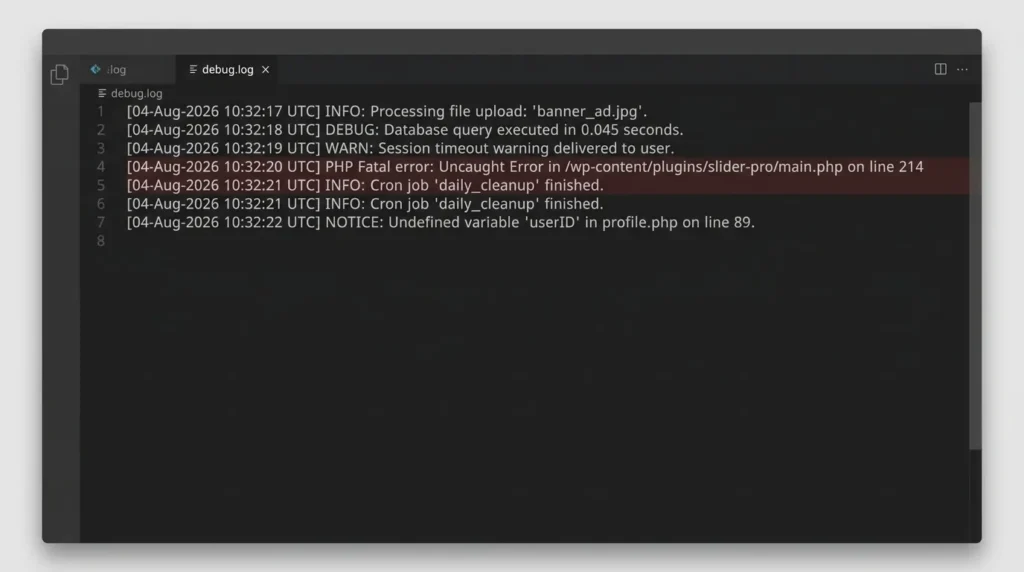
Most guides bury this step. It should be first — because a 500 error is a fatal PHP error, and fatal errors get logged with the exact file and line that caused them.
Add these lines to wp-config.php, just above /* That’s all, stop editing! */:
define( 'WP_DEBUG', true );
define( 'WP_DEBUG_LOG', true );
define( 'WP_DEBUG_DISPLAY', false );
Reload your broken site once, then open wp-content/debug.log. A line like:
PHP Fatal error: Uncaught Error: Call to undefined function ...
in /wp-content/plugins/some-plugin/includes/main.php on line 214
…just told you the offending plugin. Deactivate it (Fix 4 shows how without wp-admin) and you’re done. Your host’s error log (cPanel → Errors, or error_log files) works too. The WordPress debugging handbook covers all the debug constants. Turn WP_DEBUG off when you’re finished.
If the log points nowhere obvious, continue down the list.
New to reading these logs? I’ve written a full walkthrough on how to find and read your WordPress error log — where it lives, how to enable it safely, and how to turn a cryptic line into the exact file and plugin that broke your site.
Fix 2: Reset Your .htaccess File
A corrupted .htaccess is the classic cause of sudden 500s — one bad character in this file takes down the whole site, and plugins rewrite it all the time.
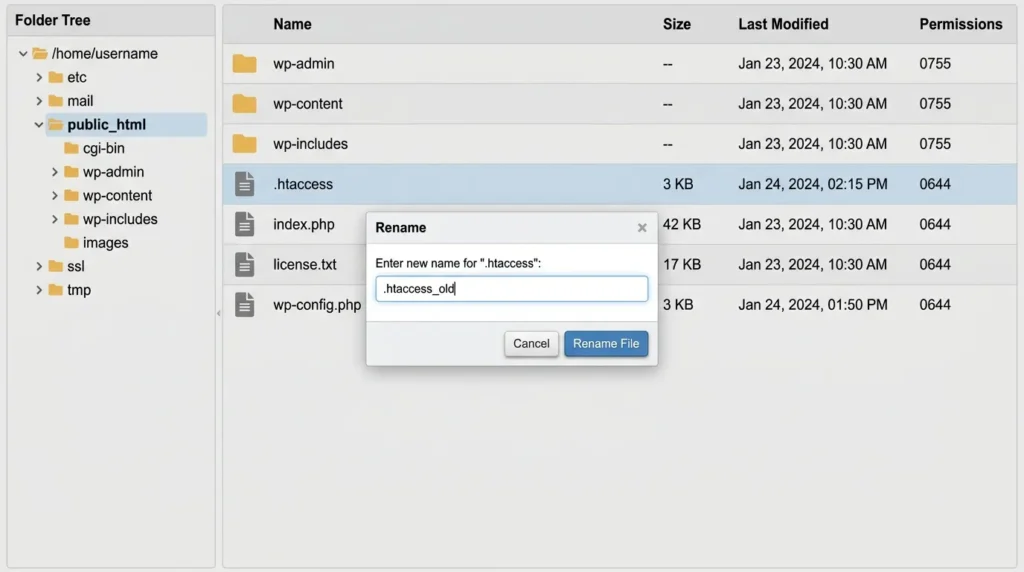
- Connect via FTP or your host’s File Manager and find .htaccess in your site root (enable “show hidden files” if you don’t see it).
- Rename it to .htaccess_old and reload your site.
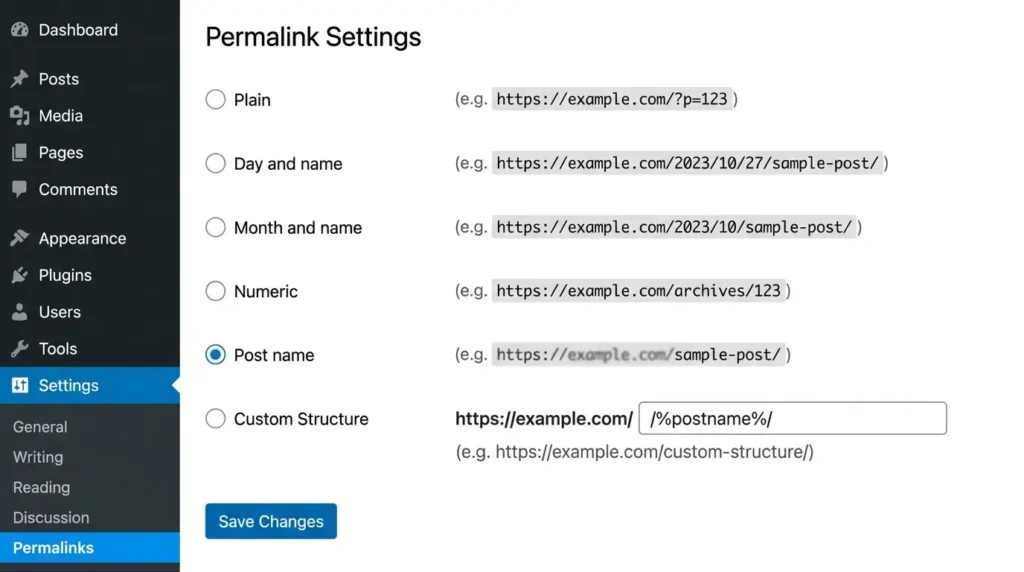
- Site back? That was it. Log in to wp-admin, go to Settings → Permalinks, and click Save Changes — WordPress writes a fresh, clean .htaccess automatically.
If you’d rather replace it manually, this is the default WordPress version:
# BEGIN WordPress
<IfModule mod_rewrite.c>
RewriteEngine On
RewriteBase /
RewriteRule ^index.php$ - [L]
RewriteCond %{REQUEST_FILENAME} !-f
RewriteCond %{REQUEST_FILENAME} !-d
RewriteRule . /index.php [L]
</IfModule>
# END WordPress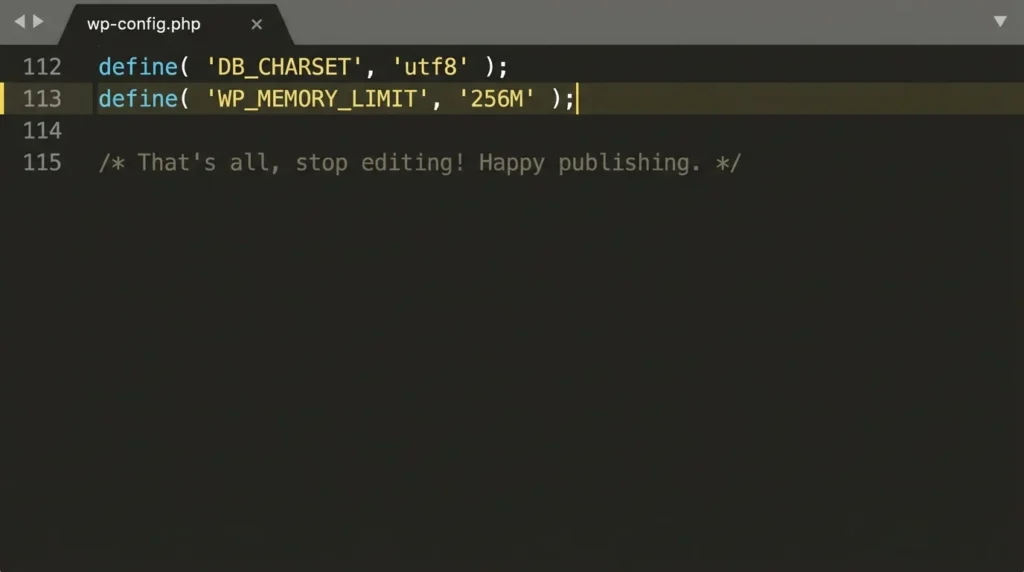
Fix 3: Increase the PHP Memory Limit
If PHP runs out of memory mid-request, it dies with a fatal error — and you get a 500. Add this to wp-config.php, above the stop-editing line:
define( 'WP_MEMORY_LIMIT', '256M' );The wp-config reference documents this constant. Note that your hosting plan sets a hard ceiling — if the server caps PHP at 128M, this line can’t exceed it, and you’ll need to raise the limit in your hosting panel (often under “PHP Options” or “MultiPHP INI Editor”) or ask support.
Memory-limit 500s often show up only on specific actions — uploading a large image, running a big import — which is a useful diagnostic clue.
And memory pressure that doesn’t quite crash the site tends to show up as a sluggish dashboard instead — I’ve covered that separately in my guide to fixing a slow WordPress admin.
Fix 4: Deactivate All Plugins, Then Bring Them Back One by One
A plugin conflict — usually right after an update — is the most common cause I see in client work. No wp-admin needed:
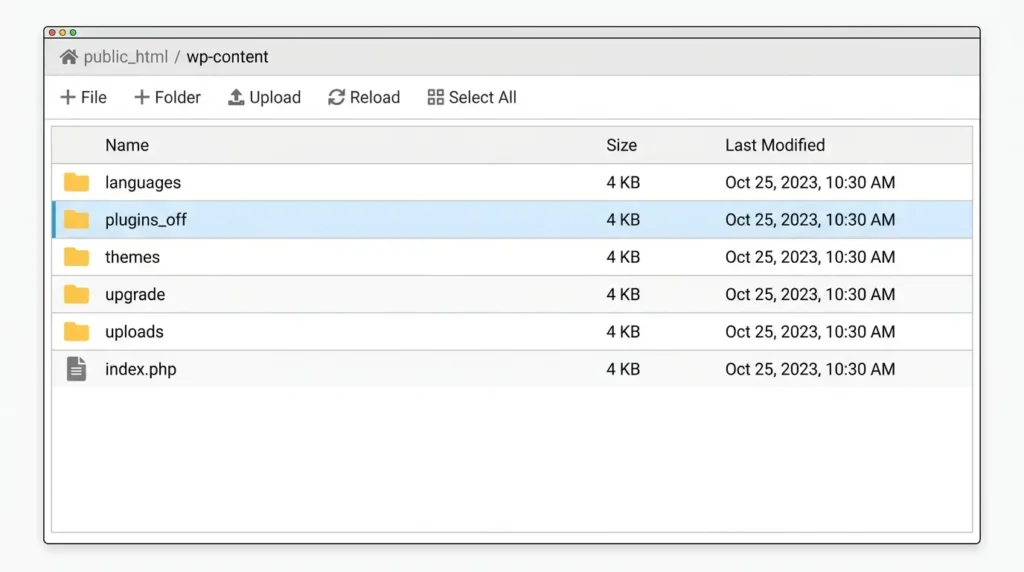
- Over FTP, open wp-content and rename the plugins folder to plugins_off. This deactivates everything at once.
- Reload the site. Working again? A plugin was the culprit.
- Rename the folder back to plugins — the plugins stay deactivated.
- In wp-admin, reactivate them one at a time, reloading the site after each. The one that brings the 500 back is your answer.
- Replace the broken plugin, roll it back to its previous version, or contact its developer.
Fix 5: Switch to a Default Theme
Same logic, theme edition — especially if the 500 appeared after editing functions.php.
Over FTP, go to wp-content/themes and rename your active theme’s folder (e.g. mytheme → mytheme_off). WordPress automatically falls back to a default theme. If the site comes back, the theme’s code is the problem — undo your last edit or restore the theme from backup.
Fix 6: Replace Corrupted Core Files
An interrupted update can leave WordPress’s own files damaged. The fix is a clean re-upload:
- Download a fresh copy from wordpress.org/download.
- Extract it, then upload and overwrite only wp-admin and wp-includes.
- Never touch wp-content or wp-config.php — your content and settings live there.
Fix 7: Check Your PHP Version
Hosts upgrade PHP behind the scenes, and an old plugin or theme that isn’t compatible with the new version will fatal-error into a 500. The reverse also happens — new code on an ancient PHP version.
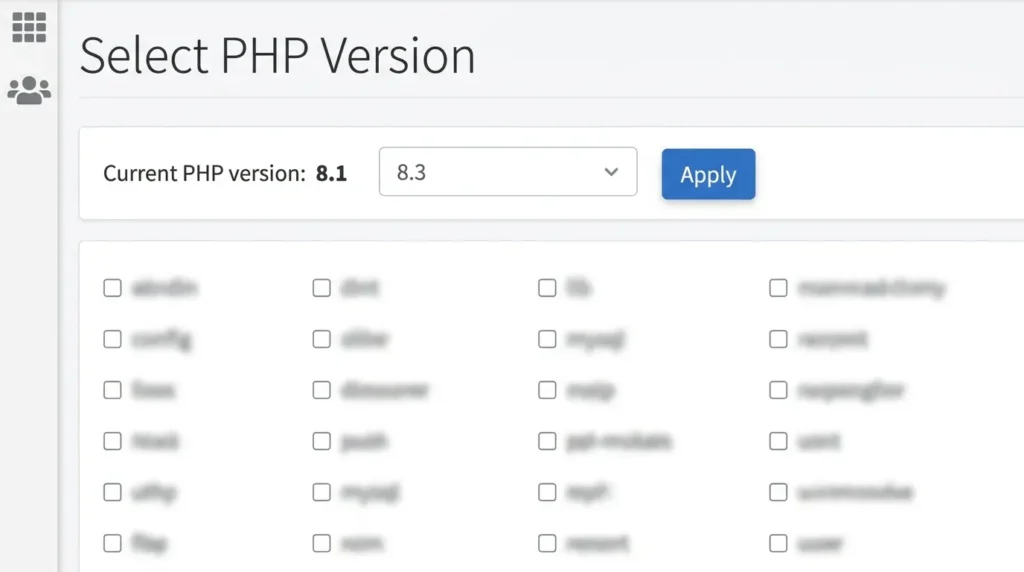
In cPanel look for Select PHP Version (or “MultiPHP Manager”). WordPress today runs best on PHP 8.1 or newer. If the 500 started right after a PHP change, switch back one version to confirm the diagnosis, then update the incompatible plugin or theme rather than staying on old PHP forever.
Fix 8: Check File and Folder Permissions
Wrong permissions — common after a migration or a botched upload — can trigger 500s, especially on stricter hosts. The WordPress standard:
- Folders: 755
- Files: 644
- wp-config.php: 640 or 600
Most FTP clients can apply these recursively (right-click → File permissions), and hosts often have a “Fix Permissions” tool that does it in one click.
Fix 9: Ask Your Host to Check the Server Side
If nothing above worked, the cause may be outside your files entirely: an overzealous mod_security rule, a resource limit on your plan, or a server misconfiguration. This is worth a ticket — and a precise one gets fast results. Tell them:
- When the 500s started and whether they’re constant or intermittent
- What you’ve ruled out (.htaccess reset, plugins disabled, memory raised, debug log checked)
- Ask directly: “Can you check the server error log and mod_security for blocks on my account?”
Fix 10: Restore a Recent Backup
The last resort, but a clean one: restore the most recent backup from before the error appeared, then apply updates one at a time to find what broke. If you don’t have backups, fix that today — it turns every future emergency into a ten-minute rollback.
How to Prevent the Next 500
- Update with discipline: one plugin at a time, and check the site after each — a batch of 12 updates makes the guilty one impossible to spot.
- Use a staging site for major updates and PHP version changes; every good host offers one-click staging now.
- Automated daily backups, stored off-server.
- Uptime monitoring, so a 3 a.m. 500 doesn’t wait for a client email to be discovered.
One more preventive habit: don’t let ordinary slowness age into failure — a site that drags under load is often a 500 waiting for traffic. My guide to fixing a slow-loading WordPress site covers that side.
And after any 500 fix, remember to clear your WordPress cache — a stale cached copy of the error page can keep showing to visitors even after the code is fixed.
Frequently Asked Questions
Is a 500 error my fault or my hosting company’s?
Usually it’s something in your site’s code — a plugin conflict, .htaccess, or memory — which is good news, because those are fixable in minutes. It’s the host’s side when the whole server is misbehaving or a security rule is blocking legitimate requests. Work Fixes 1–8 first; if they all come up clean, it’s probably the host.
Can I fix a 500 error without FTP access?
Yes. Every hosting panel includes a File Manager that does everything FTP does in this guide — renaming .htaccess, the plugins folder, or a theme folder works identically there.
Why do I get the 500 error only in wp-admin, or only on one page?
A partial 500 points at whatever loads in that specific context. Only in wp-admin: usually an admin-side plugin or an exhausted memory limit (admin screens use more memory). One page only: often a plugin or shortcode used solely on that page. The debug log from Fix 1 will name it.
Do 500 errors hurt my SEO?
A brief outage won’t hurt — Google retries later. But a site that returns 500s for days starts dropping from search results, and rankings recover slowly. Fix it promptly and set up monitoring; don’t let a weekend-long 500 go unnoticed.
How do I find the exact cause instead of guessing?
Fix 1 is the answer: enable WP_DEBUG_LOG and read wp-content/debug.log, or open your hosting error log. Fatal errors are always recorded with the file and line that crashed. Thirty seconds of log reading beats an hour of trial and error.
Wrapping Up
The 500 error looks scary because it says nothing — but that’s exactly why the method matters: read the log, reset .htaccess, raise the memory limit, isolate plugins and theme, then escalate to your host with evidence. Most sites are back inside an hour.
If yours isn’t — or you’d rather hand it to someone who does this every week — get in touch and I’ll take a look.
Shahbaz Ali is a senior WordPress developer with 6+ years of agency experience, specializing in WordPress development, speed optimization, and emergency fixes.