


“There has been a critical error on this website. Please check your site admin email inbox for instructions.” One sentence, no details, and — the part that causes real panic — it often locks you out of wp-admin too.
Here’s what six-plus years of fixing these has taught me: this message is WordPress being polite about a PHP fatal error. Something in your code crashed, WordPress caught it, and instead of a raw error dump it showed visitors this tidy screen. The crash is real, but the fix is almost always one of a handful of causes — and unlike most errors, this one usually emails you the exact culprit.
That email is where we start.
Quick answer: “There has been a critical error on this website” means a PHP fatal error crashed your site — usually a plugin or theme conflict after an update, a PHP version mismatch, or an exhausted memory limit. Check your admin email for WordPress’s “technical issue” message: it names the failing plugin or theme and includes a recovery mode link. No email? Enable debug logging, then deactivate plugins via FTP one by one.
This guide is part of my complete guide to fixing common WordPress errors — the hub that maps every common error to its fix.
What This Error Actually Means
Since WordPress 5.2, a built-in “fatal error handler” catches PHP crashes that would previously have shown a blank white screen (the old “white screen of death”). When PHP hits a fatal error — a function that doesn’t exist, incompatible code after an update, memory running out — WordPress intercepts it and shows this generic message to visitors instead.
Behind the scenes, two useful things happen:
- WordPress emails the site admin with the name of the plugin or theme that crashed, the exact error, and a special login link.
- That link opens recovery mode — a session where the broken plugin or theme is paused just for you, so you can log in and deactivate it even though the site is down for everyone else.
So this error comes with its own diagnosis attached. The fixes below start with that shortcut and then cover every case where the email never arrives.
One quick distinction before we start: if your screen says “Error establishing a database connection”, that’s a different problem with its own checklist — I’ve covered it in my guide to fixing the database connection error. And if you’re seeing a bare “HTTP ERROR 500” with no WordPress styling at all, work through my HTTP 500 error guide — same family of causes, slightly different diagnostic path.
Before You Touch Anything
- Back up what you can. Even with the site down, your files are reachable over FTP and your database via the hosting panel. The fixes below involve renaming and editing files — a backup makes every step reversible.
- Recall the last change. This error almost never appears out of nowhere. A plugin update, a theme update, a PHP version change at your host, or an edit to
functions.phpin the minutes before the crash is your prime suspect.
Fix 1: Check Your Email for the Recovery Mode Link
Open the inbox of your site’s admin email address (Settings → General — often not your personal email, which is exactly why people miss this) and search for a message titled “Your Site is Experiencing a Technical Issue.”
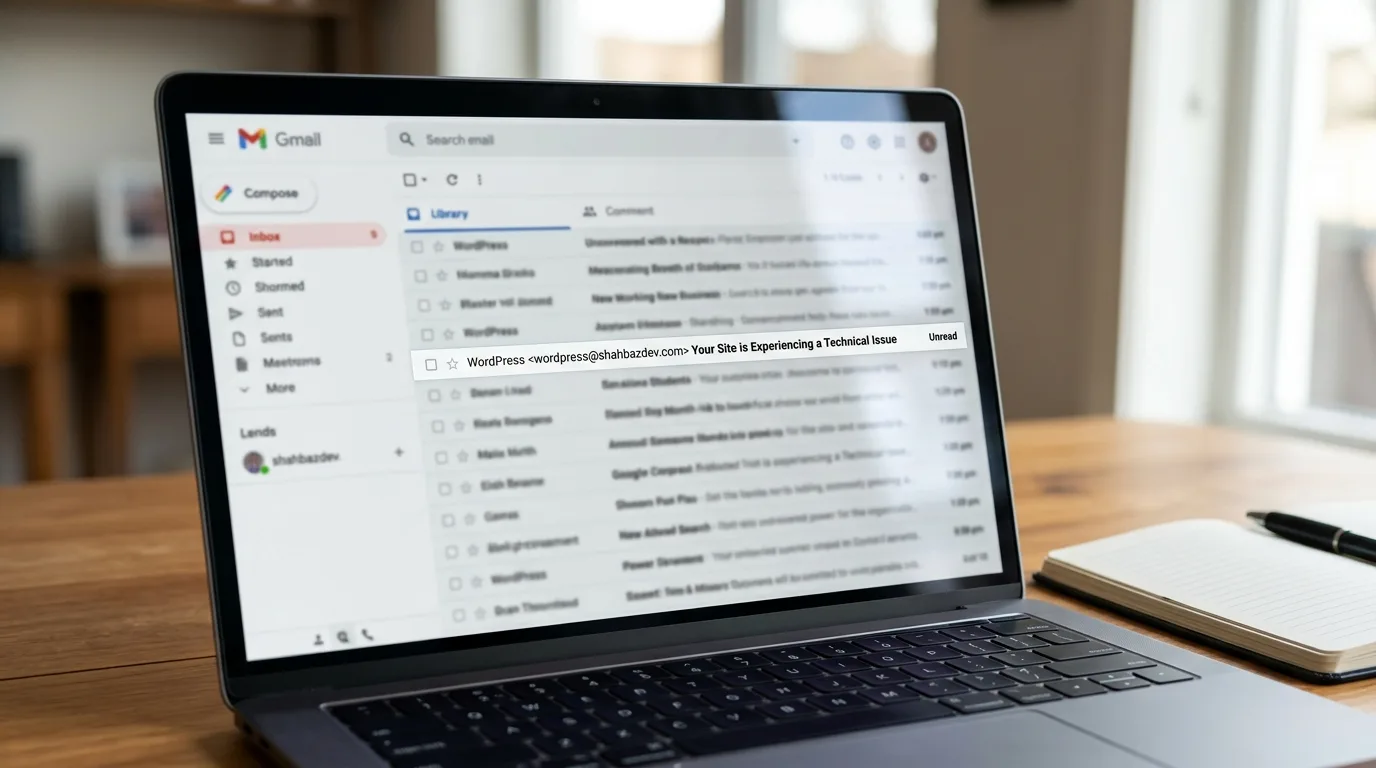
That email contains gold:
- The name of the plugin or theme that caused the fatal error
- The error message itself, with the file and line that crashed
- A recovery mode link, valid for about a day
Click the link, log in, and WordPress opens in recovery mode with the broken component paused. Go to Plugins, deactivate the one the email named (it will be flagged with an error notice), then click Exit Recovery Mode in the admin bar. In most cases your site is back online in under five minutes.
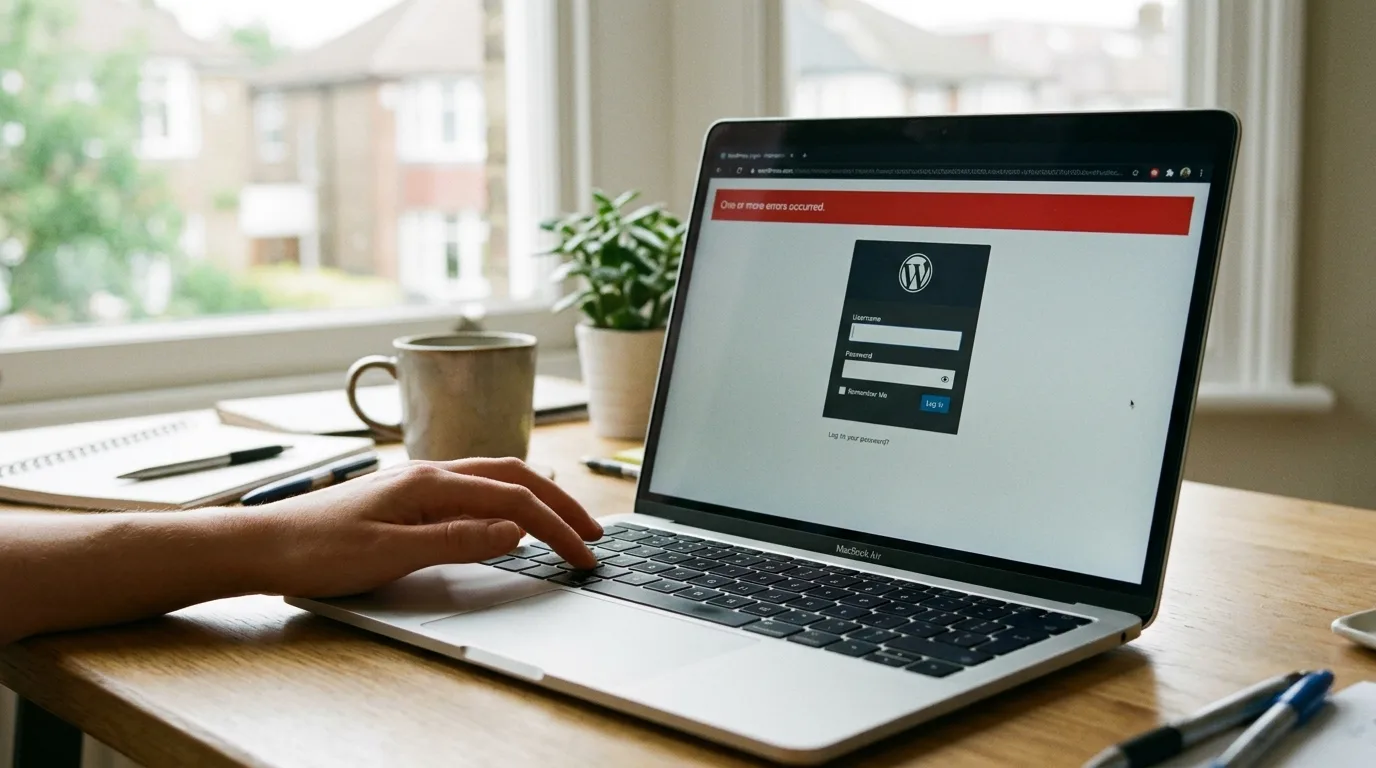
What to do with the broken plugin afterwards: check for an update (the crash is often already fixed), roll it back to the previous version, or replace it. Don’t just reactivate it and hope.
Didn’t get the email? Common on servers where WordPress mail silently fails, or when the admin address is outdated. No problem — everything below works without it.
Fix 2: Turn On Debug Logging to Find the Exact Cause
No email means no diagnosis, so make WordPress write one to a file instead. Over FTP or your host’s File Manager, open wp-config.php and add these lines just above /* That's all, stop editing! */:
define( 'WP_DEBUG', true );
define( 'WP_DEBUG_LOG', true );
define( 'WP_DEBUG_DISPLAY', false );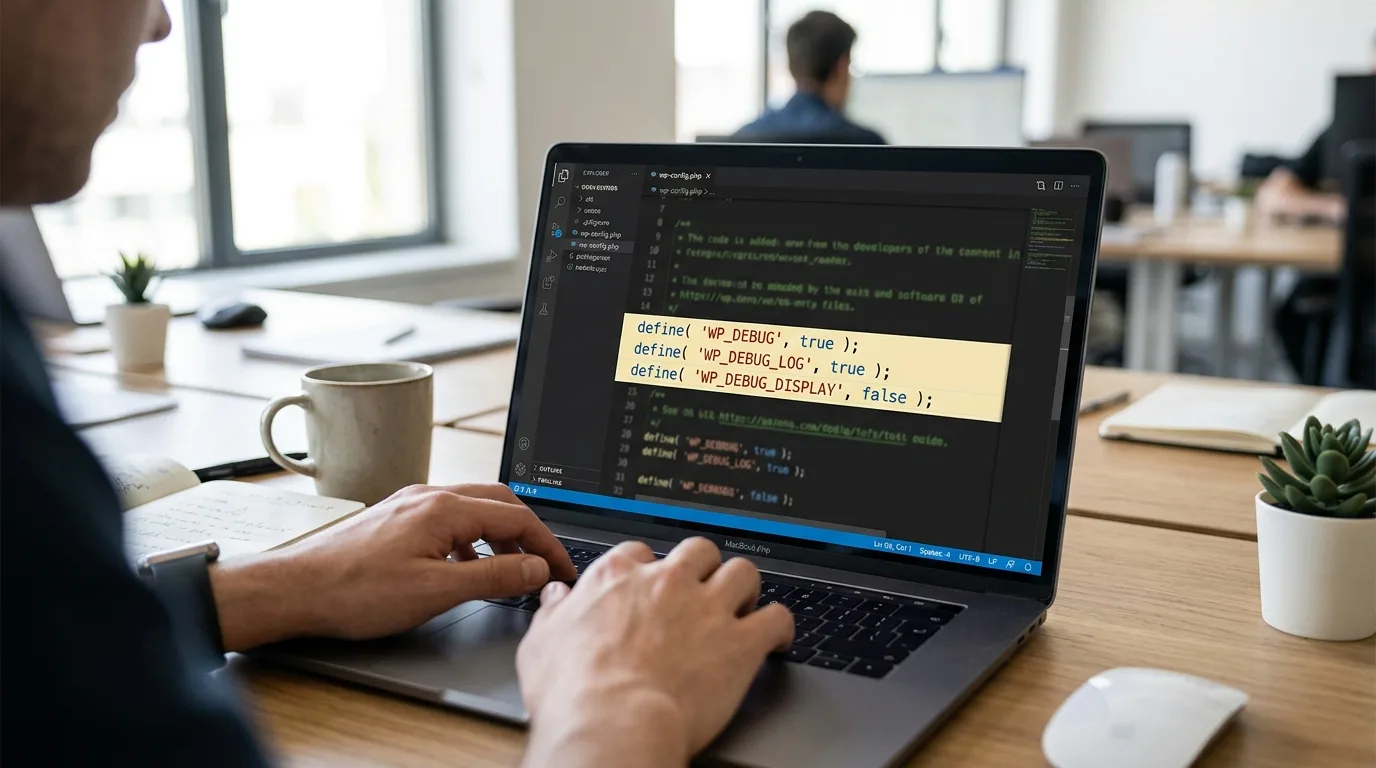
Reload the broken site once, then open wp-content/debug.log. You’re looking for a line like:
PHP Fatal error: Uncaught Error: Call to undefined function ...
in /wp-content/plugins/some-plugin/some-file.php on line 87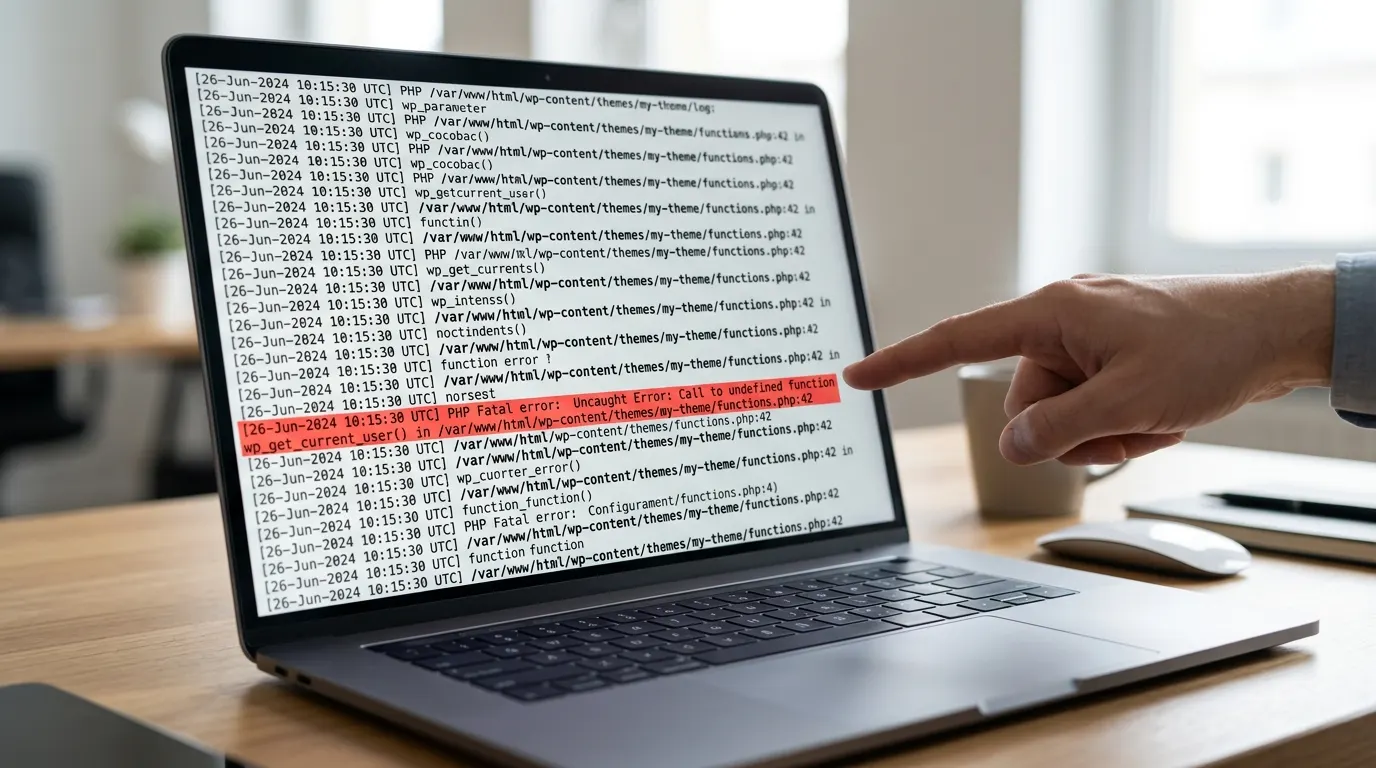
The path names the culprit: a plugin folder means that plugin, a theme folder means the theme, wp-includes points at core files or a PHP version problem. The WordPress debugging handbook documents every debug constant. Turn WP_DEBUG off again once the site is fixed.
If reading that log file feels like a foreign language, I’ve written a plain-English walkthrough: how to find and read your WordPress error log, including how to turn a fatal-error line into the exact plugin to deactivate.
Fix 3: Deactivate All Plugins via FTP
If the log points at a plugin — or you can’t read the log and need the fastest path back online — deactivate everything at once. No wp-admin required:
- Over FTP, open
wp-contentand rename thepluginsfolder toplugins_off. - Reload the site. Working? A plugin caused the crash.
- Rename the folder back to
plugins— all plugins remain deactivated. - In wp-admin, reactivate them one at a time, reloading the site after each. The one that brings the error back is your answer.
- Update, roll back, or replace that plugin.
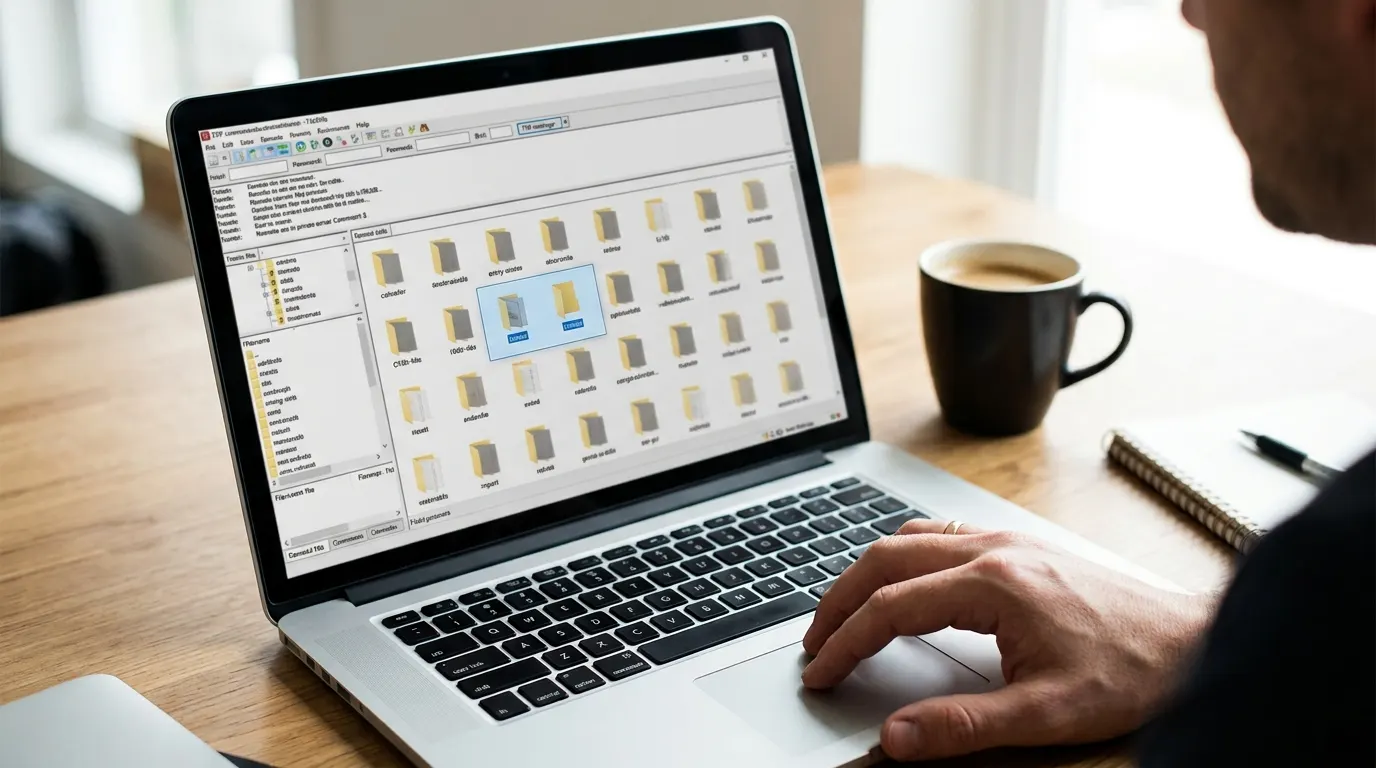
If you know exactly which plugin crashed (from the email or the log), skip the bulk rename and just rename that single plugin’s folder inside wp-content/plugins.
Fix 4: Switch to a Default Theme
If the log points at your theme — or the error appeared right after editing functions.php — rule the theme out the same way. Over FTP, go to wp-content/themes and rename your active theme’s folder (e.g. mytheme → mytheme_off). WordPress falls back to a default theme like Twenty Twenty-Four automatically, provided one is installed.
Site back? The theme’s code is the problem. Undo your last edit, restore the theme folder from backup, or — if a child theme’s functions.php was the trigger — fix the offending lines and rename the folder back.
Fix 5: Raise the PHP Memory Limit
When PHP runs out of memory mid-request, it dies with a fatal error, and WordPress dutifully reports a critical error. The telltale sign in your debug log is the phrase “Allowed memory size of X bytes exhausted.”
Add this to wp-config.php, above the stop-editing line:
define( 'WP_MEMORY_LIMIT', '256M' );The wp-config reference documents this constant. One caveat: your hosting plan sets a hard ceiling. If the server caps PHP at 128M, this line can’t override it — raise the limit in your hosting panel (usually “PHP Options” or “MultiPHP INI Editor”) or ask support.
Memory crashes often happen only on heavy actions — a big import, a page-builder edit screen, an image-heavy page — which is a useful clue in itself.
And when memory runs low without fully running out, the site doesn’t crash — the backend just gets painfully sluggish. That version has its own checklist in my guide to fixing a slow WordPress admin.
Fix 6: Check Your PHP Version
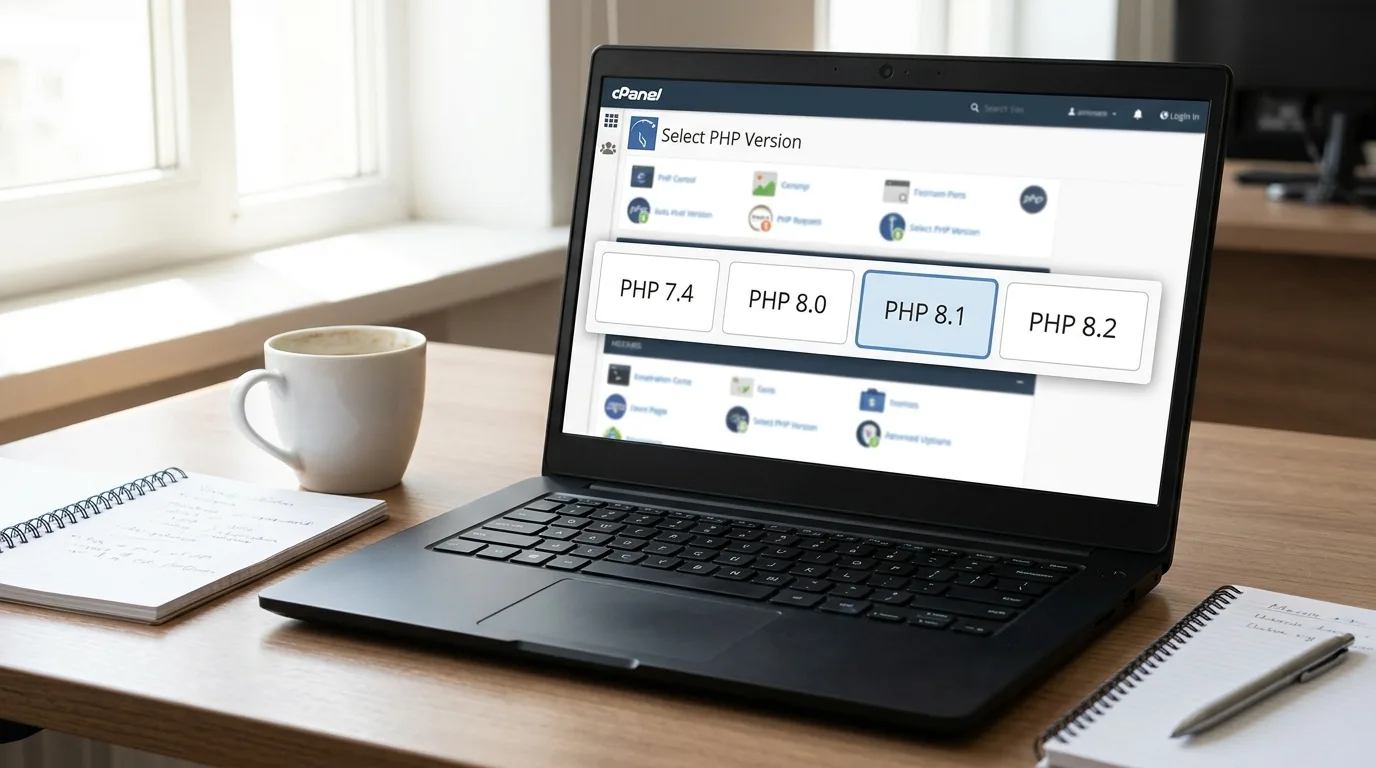
Hosts upgrade PHP behind the scenes, and old plugin or theme code that isn’t compatible with the new version will fatal-error on the spot. The reverse happens too: modern plugins increasingly require PHP 7.4+ and will crash ancient servers.
In cPanel, look for Select PHP Version or “MultiPHP Manager.” WordPress today runs best on PHP 8.1 or newer. If the critical error started right after a PHP change, switch back one version to confirm the diagnosis — then fix the incompatible plugin or theme and move forward again. Staying on an outdated PHP version is a security and speed problem of its own.
Fix 7: Replace Corrupted Core Files
An interrupted WordPress update can leave core files damaged or half-written — the debug log will show fatal errors inside wp-admin or wp-includes paths. The fix is a clean re-upload:
- Download a fresh copy of WordPress from wordpress.org/download.
- Extract it on your computer.
- Over FTP, upload and overwrite only the
wp-adminandwp-includesfolders. - Never touch
wp-content(themes, plugins, uploads) orwp-config.php— your content and settings live there.
Fix 8: Undo Recent Code Edits
Be honest with yourself here — did you paste a code snippet into functions.php, a code snippets plugin, or the theme editor right before the crash? A single missing semicolon or an unclosed bracket in PHP takes down the entire site with exactly this error.
Remove or fix the snippet you added. If you used the built-in theme file editor and are now locked out, edit the same file over FTP: it’s at wp-content/themes/your-theme/functions.php. And going forward, add snippets through a snippets plugin that validates code before saving, or test on staging first — never in the live theme editor.
Fix 9: Scan for Malware
Less common, but real: malware injects broken code into theme files, core files, or the database, and the injected code itself fatal-errors. Suspect this if the error appeared without any update or edit on your side, if the debug log points at files with odd names, or if you’ve seen other symptoms — strange redirects, spam pages, admin users you didn’t create.
Once the site is back online: run a full scan with a reputable security plugin, remove what it finds, change your hosting, database, and all WordPress admin passwords, and update everything that’s outdated. If core files were infected, Fix 7’s clean re-upload doubles as cleanup.
Fix 10: Restore a Backup or Escalate to Your Host
If nothing above has worked, two clean options remain.
Restore the most recent backup from before the error appeared, then reapply updates one at a time to identify what broke.
Or escalate — and make the ticket count. Tell your host: when the error started, what you’ve ruled out (“recovery email never arrived, plugins disabled via FTP, memory raised to 256M, debug log attached”), and ask them directly to check the server’s PHP error log and any recent PHP version or configuration changes on your account. A precise ticket like that routinely cuts resolution time from days to hours.
How to Prevent the Next Critical Error
- Update with discipline: one plugin at a time, checking the site after each. A batch of twelve updates makes the guilty one impossible to identify.
- Use a staging site for theme updates, major plugin updates, and PHP version changes — every good host offers one-click staging now.
- Automated daily backups, stored off-server, so any future crash is a ten-minute rollback.
- Keep the admin email current (Settings → General) and test that your site can send mail — the recovery email is only useful if it reaches you.
- Never edit PHP in the live theme editor. Snippets plugin or staging, always.
And treat creeping slowness as an early warning — the same weak hosting and heavy plugins behind a sluggish site are what eventually crash one. My guide to fixing a slow-loading WordPress site shows the diagnosis.
After any fix, clear your WordPress cache to make sure visitors stop seeing the cached error page.
Frequently Asked Questions
Is my content lost when this error appears?
No. This is a code crash, not data loss — your posts, pages, media, and orders are untouched in the database. The moment the failing code is deactivated or fixed, everything reappears exactly as it was.
I never received the “technical issue” email. Why?
Three usual reasons: the admin email in Settings → General is outdated or someone else’s, the server can’t send mail (very common on unconfigured hosting), or the message landed in spam. Search all folders for “Your Site is Experiencing a Technical Issue.” If it’s genuinely absent, the debug log from Fix 2 gives you the same information.
Why does the critical error show only on some pages, or only in wp-admin?
A partial version points at whatever loads in that specific context. One page only: usually a plugin, widget, or shortcode used solely there. Only in wp-admin: typically an admin-side plugin or an exhausted memory limit, since admin screens use more memory than the front end. The debug log names the exact file either way.
Can I just wait for the error to go away?
No — a fatal error never resolves itself, and every hour down costs you visitors and, eventually, rankings. The one exception that feels like waiting works: if your host is mid-maintenance or auto-rolling-back a PHP change. Check their status page, but work the fixes in parallel.
Is this the same as the HTTP 500 error?
Same family, different presentation. Both mean PHP crashed on the server. If WordPress’s error handler catches the crash, you get this friendly critical-error screen plus the recovery email; if the crash happens too early for WordPress to intervene, you get a raw HTTP 500 instead.
Wrapping Up
The critical error message tells you nothing, but the system behind it tells you nearly everything: read the recovery email, or make the debug log talk, then deactivate the named plugin or theme and deal with memory, PHP version, or core files as needed. Most sites are back online well inside an hour.
If yours isn’t — or you’d rather hand it to someone who untangles these every week — get in touch and I’ll take a look.
Shahbaz Ali is a senior WordPress developer with 6+ years of agency experience, specializing in WordPress development, speed optimization, and emergency fixes.